OmicVerse Installation Guide
For the Chinese version, please check 安装指南 (中文版).
Prerequisites
OmicVerse can be installed via conda or pip, but you must install PyTorch first.
Note
We recommend installing OmicVerse within a conda environment to avoid dependency
conflicts. Use pip install -U omicverse to update existing installations.
We also recommend using uv pip instead of regular pip.
You can install uv by running pip install uv.
Platform-Specific Requirements
Install the WSL subsystem and configure conda within WSL.
Starting from version 1.6.2, OmicVerse supports native Windows.
You’ll need to install torch and torch_geometric first.
Use miniforge or
mambaforge.
Important for Apple Silicon Macs: OmicVerse requires a native version of Python. Install a native Apple Silicon version of mambaforge using Homebrew:
brew install --cask mambaforge
Installation Methods
The easiest way to install OmicVerse is using our installation script:
# Linux only
curl -sSL omicverse.com/install | bash -s
This script will automatically:
Set up the appropriate environment
Install the correct PyTorch version for your system
Install all required dependencies
Configure OmicVerse optimally for your hardware
Create and activate a new environment:
conda create -n omicverse python=3.10
conda activate omicverse
Install PyTorch and PyTorch Geometric (PyG):
# For CUDA support (check your CUDA version with 'nvcc --version')
conda install pytorch torchvision torchaudio pytorch-cuda=11.8 -c pytorch -c nvidia

# OR for CPU-only installation
conda install pytorch torchvision torchaudio cpuonly -c pytorch

# Install PyTorch Geometric
conda install pyg -c pyg
Install OmicVerse:
conda install omicverse -c conda-forge
Verify the installation:
python -c "import omicverse"
Install uv (recommended package manager):
pip install uv
Install PyTorch (installing with pip on macOS may encounter some issues):
uv pip install torch torchvision torchaudio
Install PyTorch Geometric:
uv pip install torch_geometric
Install OmicVerse:
uv pip install omicverse
Verify the installation:
python -c "import omicverse"
Other Options
To install the latest development version with the newest features:
# Option 1: Clone repository and install locally
git clone https://github.com/Starlitnightly/omicverse.git
cd omicverse
pip install .

# Option 2: Install directly from GitHub
pip install git+https://github.com/Starlitnightly/omicverse.git
For contributors:
pip install -e ".[dev,docs]"
For maximum performance with GPU acceleration:
# 1. Create a new conda environment
conda create -n rapids python=3.11

# 2. Install RAPIDS
conda install rapids=24.04 -c rapidsai -c conda-forge -c nvidia -y

# 3. Install additional RAPIDS components
conda install cudf=24.04 cuml=24.04 cugraph=24.04 cuxfilter=24.04 \
    cucim=24.04 pylibraft=24.04 raft-dask=24.04 cuvs=24.04 \
    -c rapidsai -c conda-forge -c nvidia -y

# 4. Install rapids-singlecell
pip install rapids-singlecell

# 5. Install OmicVerse
curl -sSL https://raw.githubusercontent.com/Starlitnightly/omicverse/refs/heads/master/install.sh | bash -s
Note
We install RAPIDS 24.04 because some systems have glibc < 2.28. Follow the official RAPIDS tutorial to install the latest version if your system supports it.
Docker
Pre-built Docker images are available on Docker Hub.
docker pull starlitnightly/omicverse
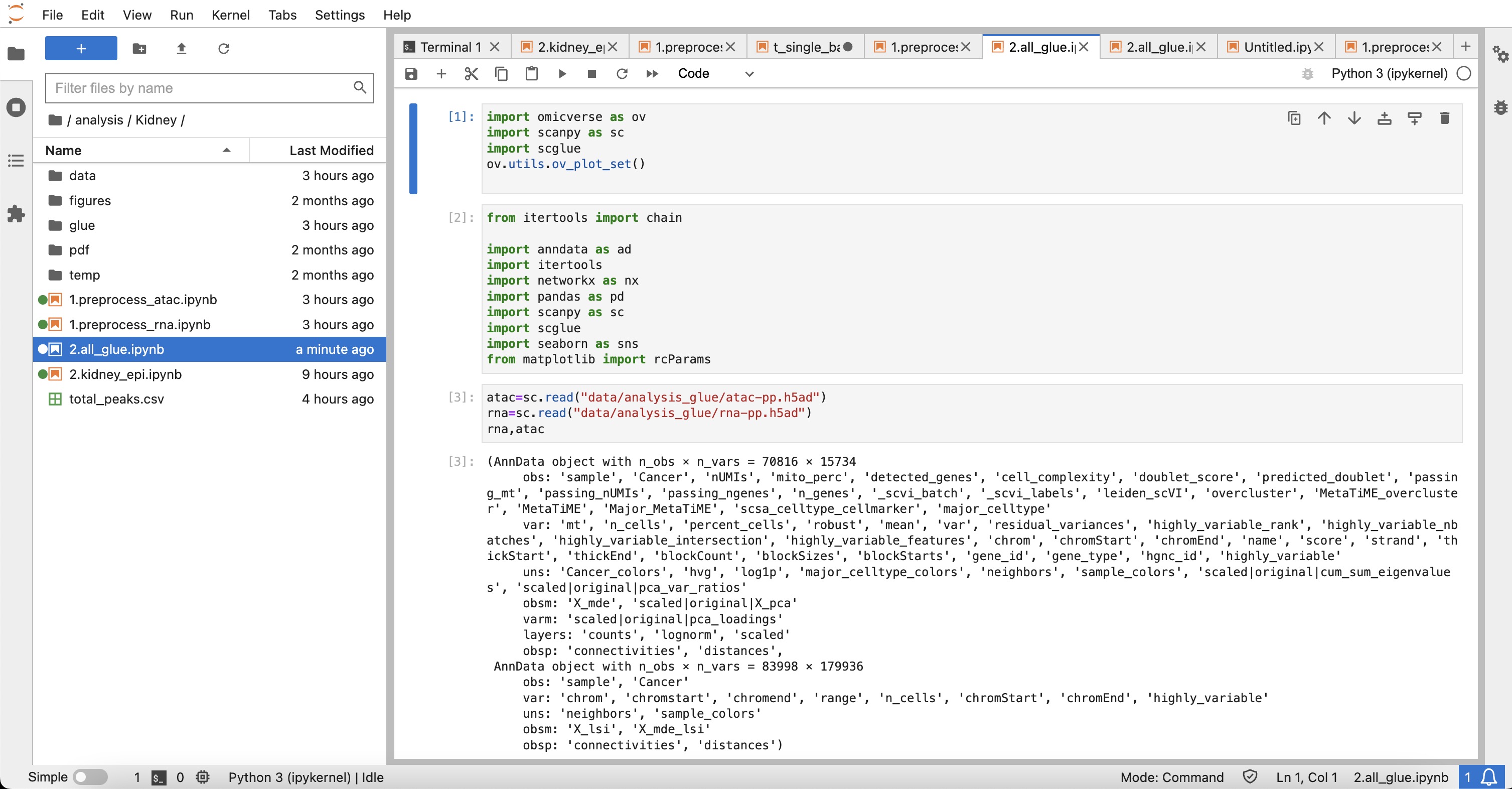
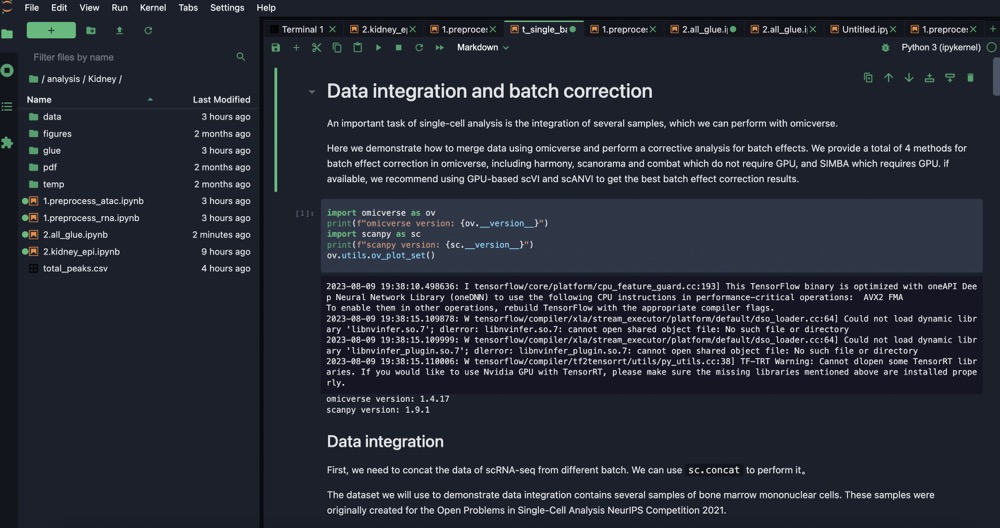
Jupyter Lab Setup
We recommend using Jupyter Lab for interactive analysis:
pip install jupyterlab
After installation, activate your omicverse environment and run jupyter lab in your
terminal. A URL will appear that you can open in your browser.
Troubleshooting
# Ubuntu
sudo apt update
sudo apt install build-essential

# CentOS
sudo yum group install "Development Tools"

# Verify GCC
gcc --version
If pip fails to install certain packages (e.g., scikit-misc), try conda instead:
conda install scikit-misc -c conda-forge -c bioconda
conda install s_gd2 -c conda-forge
pip install -U omicverse
conda install pytorch::pytorch torchvision torchaudio -c pytorch
Important: OmicVerse requires a native version of Python on Apple Silicon Macs. Install a native Apple Silicon version of mambaforge using Homebrew:
brew install --cask mambaforge
# 1. Uninstall pip wheels
pip uninstall -y numpy scipy scikit-learn threadpoolctl \
    torch torchvision torchaudio pytorch-lightning

# 2. Install clean LP64 + OpenBLAS stack from conda-forge
mamba install -c conda-forge \
    "numpy>=1.26,<2" "scipy>=1.11,<2" anndata "scanpy>=1.10" pandas \
    scikit-learn numexpr threadpoolctl \
    "libblas=*=*openblas" "libopenblas=*=*openmp" libomp

# 3. Install PyTorch with conda
mamba install -c pytorch -c conda-forge pytorch torchvision torchaudio