🧬 OmicVerse 安装指南
📚 For English version, please check Installation Guide (English)
📋 前提条件
OmicVerse 可以通过 conda 或 pip 安装,但首先需要安装 PyTorch。
!!! note
我们建议在 `conda` 环境中安装 OmicVerse,以避免依赖冲突。使用 `pip install -U omicverse` 更新现有安装。

我们还建议使用 `uv pip` 代替常规的 `pip`。您可以通过运行 `pip install uv` 来安装 `uv`。
平台特定要求
=== “Windows (WSL)”
安装 [WSL 子系统](https://learn.microsoft.com/en-us/windows/wsl/install) 并在 WSL 中配置 conda。
=== “Windows (Native)”
从版本 `1.6.2` 开始,OmicVerse 支持原生 Windows。您需要先安装 `torch` 和 `torch_geometric`。
=== “Linux”
安装 [Anaconda](https://www.anaconda.com/) 或 [Miniconda](https://docs.conda.io/en/latest/miniconda.html)。
=== “macOS”
使用 [`miniforge`](https://github.com/conda-forge/miniforge) 或 [`mambaforge`](https://www.rho-signal-effective-analytics.com/modules/pre-course/miniconda-installation/)。

**Apple Silicon Mac 的重要提示:** OmicVerse 需要原生版本的 Python。请使用 Homebrew 安装原生 Apple Silicon 版本的 mambaforge:`brew install --cask mambaforge`。
🚀 安装方法
=== “快速安装(推荐)”
!!! note "快速安装"

    安装 OmicVerse 最简单的方法是使用我们的安装脚本:

    ```shell
    # 仅适用于 Linux
    curl -sSL omicverse.com/install | bash -s
    ```

    **国内用户加速版本**:

    ```shell
    # 仅适用于 Linux(国内加速)
    curl -sSL https://starlit.oss-cn-beijing.aliyuncs.com/single/install.sh | bash -s
    ```

    该脚本会自动:
    - 设置适当的环境
    - 为您的系统安装正确的 PyTorch 版本
    - 安装所有必需的依赖项
    - 为您的硬件优化配置 OmicVerse
=== “Conda/Mamba”
!!! note "Conda/Mamba"

    1. **创建并激活新环境**:
      ```shell
      conda create -n omicverse python=3.10
      conda activate omicverse
      ```

    2. **安装 PyTorch 和 PyTorch Geometric (PyG)**:
      ```shell
      # 对于 CUDA 支持(使用 'nvcc --version' 检查您的 CUDA 版本)
      conda install pytorch torchvision torchaudio pytorch-cuda=11.8 -c pytorch -c nvidia

      # 或仅使用 CPU 安装
      conda install pytorch torchvision torchaudio cpuonly -c pytorch

      # 安装 PyTorch Geometric
      conda install pyg -c pyg
      ```

    3. **安装 OmicVerse**:
      ```shell
      conda install omicverse -c conda-forge
      ```

    4. **验证安装**:
      ```shell
      python -c "import omicverse"
      ```
=== “pip/PyPI”
!!! note "pip/PyPI"

    1. **安装 uv(推荐的包管理器)**:
        ```shell
        pip install uv
        ```
    2. **安装 PyTorch**:
        ```shell
        uv pip install torch torchvision torchaudio
        ```
    3. **安装 PyTorch Geometric**:
        ```shell
        uv pip install torch_geometric
        ```
    4. **安装 OmicVerse**:
      ```shell
      uv pip install omicverse
      ```
    5. **验证安装**:
      ```shell
      python -c "import omicverse"
      ```
其他重要选项
!!! tip “开发版本(最新开发构建)”
要安装具有最新功能的开发版本:

```shell
# 选项 1: 克隆仓库并本地安装
git clone https://github.com/Starlitnightly/omicverse.git
cd omicverse
pip install .

# 选项 2: 直接从 GitHub 安装
pip install git+https://github.com/Starlitnightly/omicverse.git
```
!!! tip “开发环境设置”
对于想要为 OmicVerse 做贡献的开发者:

```shell
pip install -e ".[dev,docs]"
```
!!! tip “GPU 加速安装(使用 RAPIDS)”
为了获得 GPU 加速的最佳性能:

```shell
# 1. 创建新的 conda 环境
conda create -n rapids python=3.11

# 2. 使用 conda 安装 RAPIDS
conda install rapids=24.04 -c rapidsai -c conda-forge -c nvidia -y

# 3. 安装额外的 RAPIDS 组件
conda install cudf=24.04 cuml=24.04 cugraph=24.04 cuxfilter=24.04 cucim=24.04 pylibraft=24.04 raft-dask=24.04 cuvs=24.04 -c rapidsai -c conda-forge -c nvidia -y

# 4. 安装 rapids-singlecell
pip install rapids-singlecell

# 5. 安装 OmicVerse
curl -sSL https://raw.githubusercontent.com/Starlitnightly/omicverse/refs/heads/master/install.sh | bash -s
```

**注意:** 我们安装 RAPIDS 版本 24.04,因为某些系统的 glibc<2.28。如果您的系统支持,您可以按照官方 RAPIDS 教程安装最新版本。
Docker 安装
预构建的 Docker 镜像可在 Docker Hub 上获取。
Jupyter Lab 设置
!!! note “Jupyter Lab”
我们推荐使用 Jupyter Lab 进行交互式分析:

```shell
pip install jupyter-lab
```

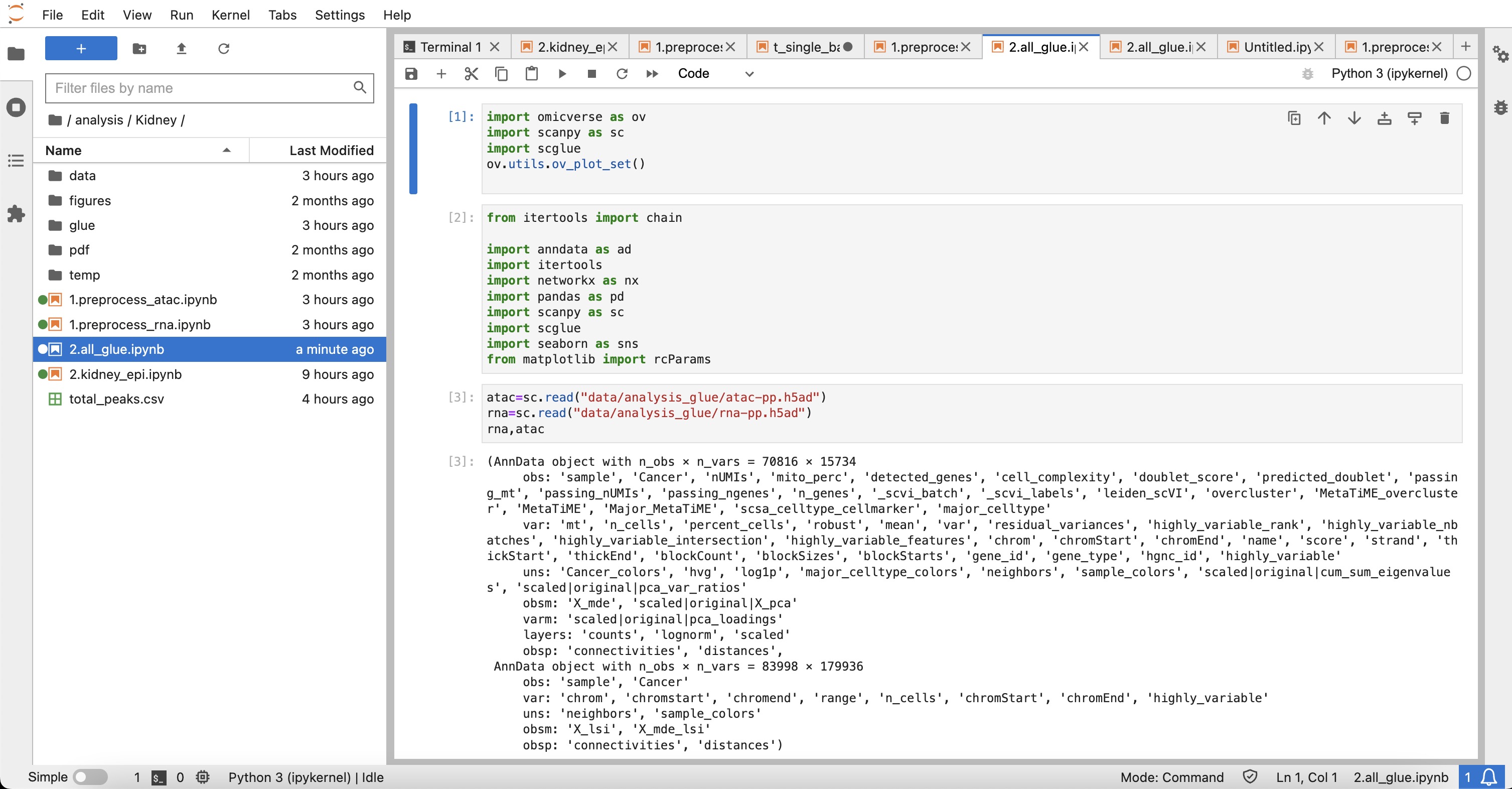
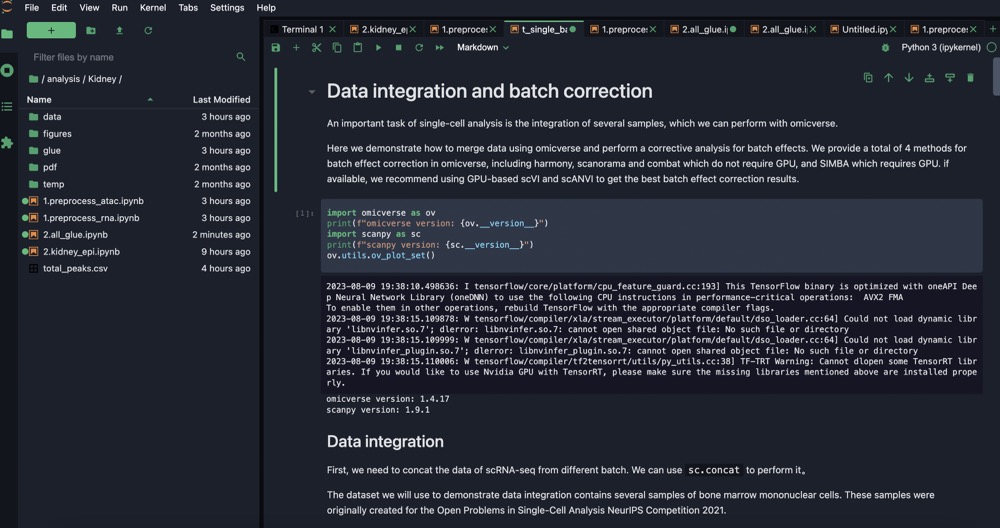
安装完成后,激活您的 omicverse 环境并在终端中运行 `jupyter-lab`。将会出现一个 URL,您可以在浏览器中打开它。
故障排除
!!! info “Linux GCC 设置”
```shell
# Ubuntu
sudo apt update
sudo apt install build-essential

# CentOS
sudo yum group install "Development Tools"

# 验证 GCC
gcc --version
```
!!! info “包安装问题”
如果 pip 无法安装某些包(例如 scikit-misc),请尝试使用 conda:
```shell
conda install scikit-misc -c conda-forge -c bioconda
```
!!! info “Apple Silicon (M1/M2) 问题”
对于遇到问题的 Apple Silicon Mac 用户:
```shell
conda install s_gd2 -c conda-forge
pip install -U omicverse
conda install pytorch::pytorch torchvision torchaudio -c pytorch
```
!!! info “Apple Silicon 要求”
**重要:** OmicVerse 在 Apple Silicon Mac 上需要原生版本的 Python。请确保使用 Homebrew 安装原生 Apple Silicon 版本的 mambaforge:
```shell
brew install --cask mambaforge
```
!!! info “MacOS Omp_set_nested 段错误”
这通常是由于torch的安装和numpy等冲突了:

在 conda-forge 上:
- macOS:libopenblas=*=*openmp
- Linux:libopenblas=*=*pthreads

```shell
# 1) 先卸载 pip 轮子(关键)
pip uninstall -y numpy scipy scikit-learn threadpoolctl torch torchvision torchaudio pytorch-lightning

# 2) 用 conda-forge 安装干净的 LP64 + OpenBLAS(openmp) 数值栈
mamba install -c conda-forge \
  "numpy>=1.26,<2" "scipy>=1.11,<2" anndata "scanpy>=1.10" pandas \
  scikit-learn numexpr threadpoolctl \
  "libblas=*=*openblas" "libopenblas=*=*openmp" libomp

# 3| Install pytorch with conda
mamba install -c pytorch -c conda-forge pytorch torchvision torchaudio

```

ILP64 NumPy(openblas64_)用 64 位整数作为 BLAS 下标;很多 Python 扩展(特别是 SciPy/稀疏/包装层)假定 LP64。一旦混到 LP64/ILP64 交叉调用,很容易崩。

两个 libomp.dylib 同时加载(来自 torch 和 sklearn 的 pip wheels 的私有 .dylibs)会造成 OpenMP runtime 重复初始化/符号冲突。

pip + conda 混装使得链接目标不一致:conda 走 OpenBLAS(pthreads),pip 轮子各自携带 OMP/BLAS 或用 Accelerate,彼此不见得 ABI 兼容。