OmicVerse Web Tutorial
OmicVerse Web is a browser-based platform for single-cell and multi-omics analysis. It wraps the full analytical power of OmicVerse into an interactive visual interface — no coding required to go from raw data to publication-ready results.
📚 For the Chinese version, please check 使用指南 (中文版)
Table of Contents
- Installation
- Starting the Server
- Interface Overview
- Uploading Data
- Preprocessing
- Dimensionality Reduction & Visualization
- Clustering
- Cell Annotation
- Differential Gene Expression
- Differential Cell Type Composition
- Trajectory Analysis
- Code Executor
- AI Agent
- File Manager & Terminal
- Remote Server Deployment
1. Installation
OmicVerse Web offers two installation methods.
Option 1: Install from PyPI (Recommended)
pip install omicverseweb
Option 2: Install from the GitHub Repository
Use this option if you want the latest development version or plan to contribute:
git clone https://github.com/Starlitnightly/omicverse-web.git
cd omicverse-web
pip install -e .
Recommended: Install inside a dedicated conda environment to avoid dependency conflicts.
conda create -n omicverse python=3.10
conda activate omicverse
pip install omicverseweb
2. Starting the Server
After installation, run the following command in your terminal:
omicverse-web
The server starts at http://localhost:5050 by default (automatically increments to 5051, 5052 … if the port is occupied). A successful start looks like:
* OmicVerse Web running on http://localhost:5050
Open that URL in your browser to access the platform.
Optional Arguments
omicverse-web --port 8080          # Specify a port
omicverse-web --no-debug           # Disable debug mode (recommended for production)
omicverse-web --remote             # Remote mode (use with SSH tunnel)
3. Interface Overview
After opening http://localhost:5050, click Launch Analysis on the landing page to enter the main analysis interface.
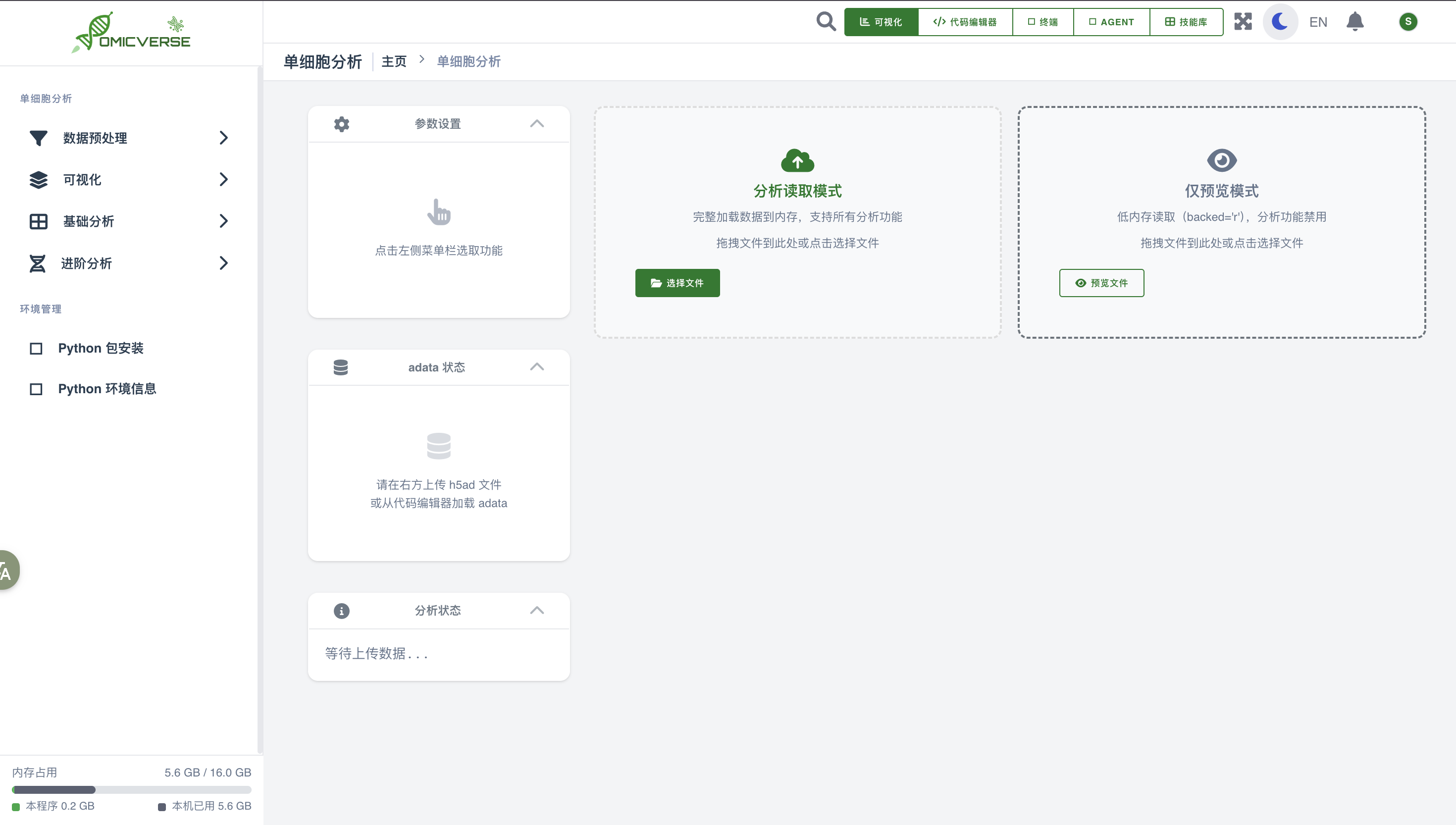
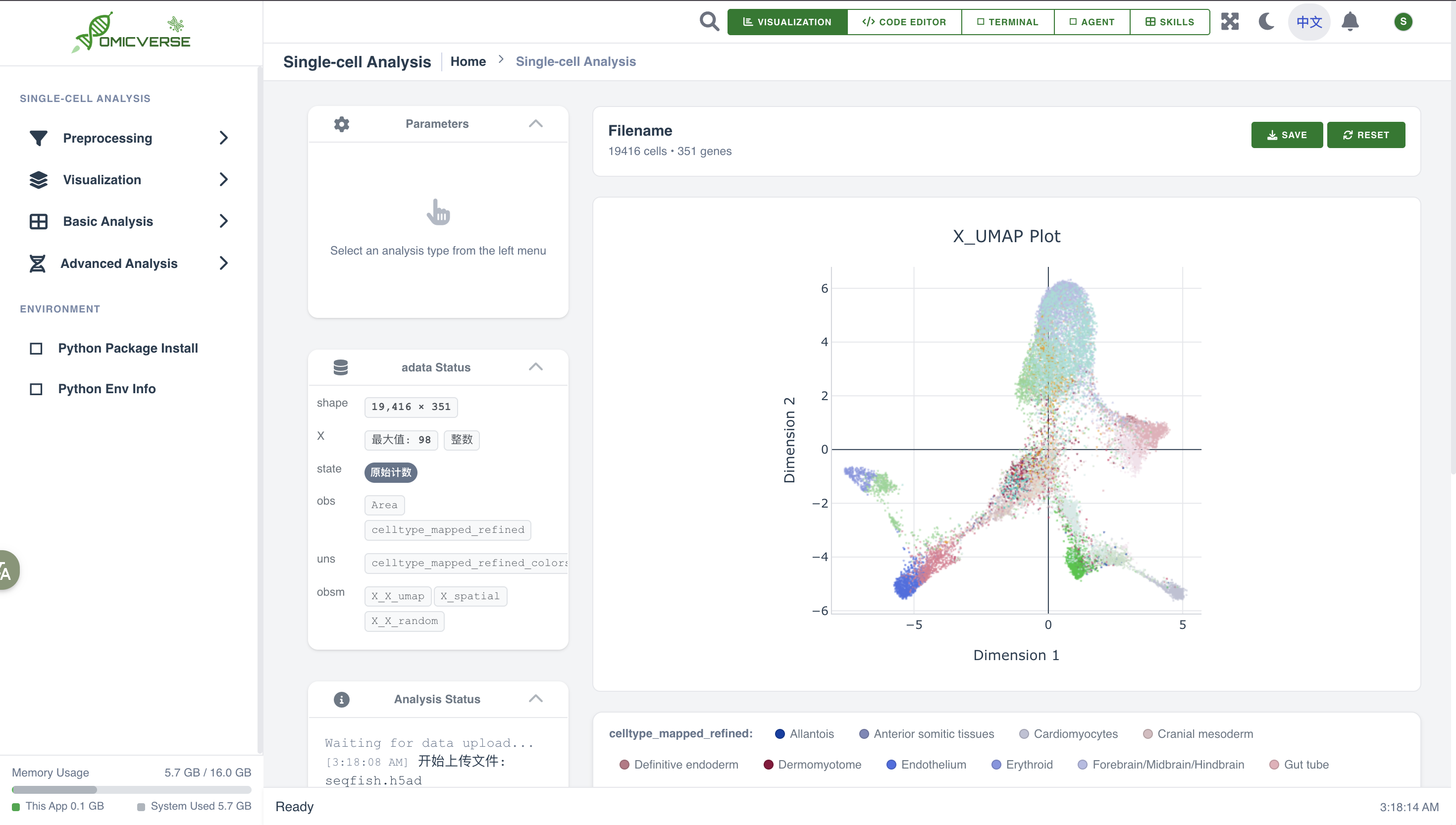
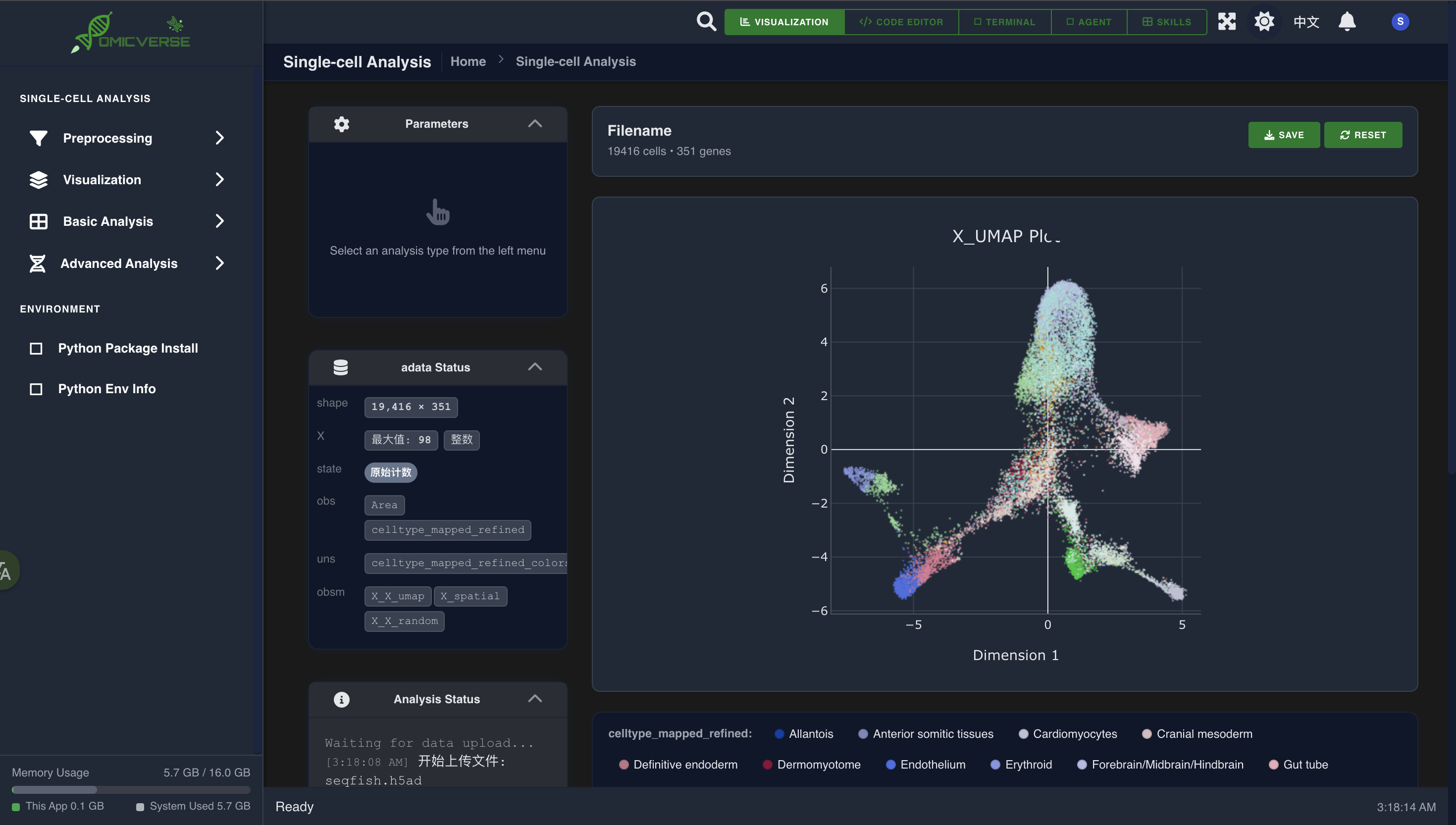
The main interface is divided into three areas:
Left Sidebar - 📁 File Browser — manage local files with a right-click context menu - 🧬 Variable Viewer — inspect variables in the live kernel in real time - 💻 Terminal Panel — a full shell session in the browser - 📊 Memory Monitor — live process and system memory usage
Top Tab Bar Arranged in analysis order: Preprocessing → Visualization → Clustering → Annotation → DEG → DCT → Trajectory
Main Panel (right) The parameter panel and result display area for the currently active tab
4. Uploading Data
Click the Upload button in the top toolbar (or drag a file into the file browser) and select a local .h5ad file.
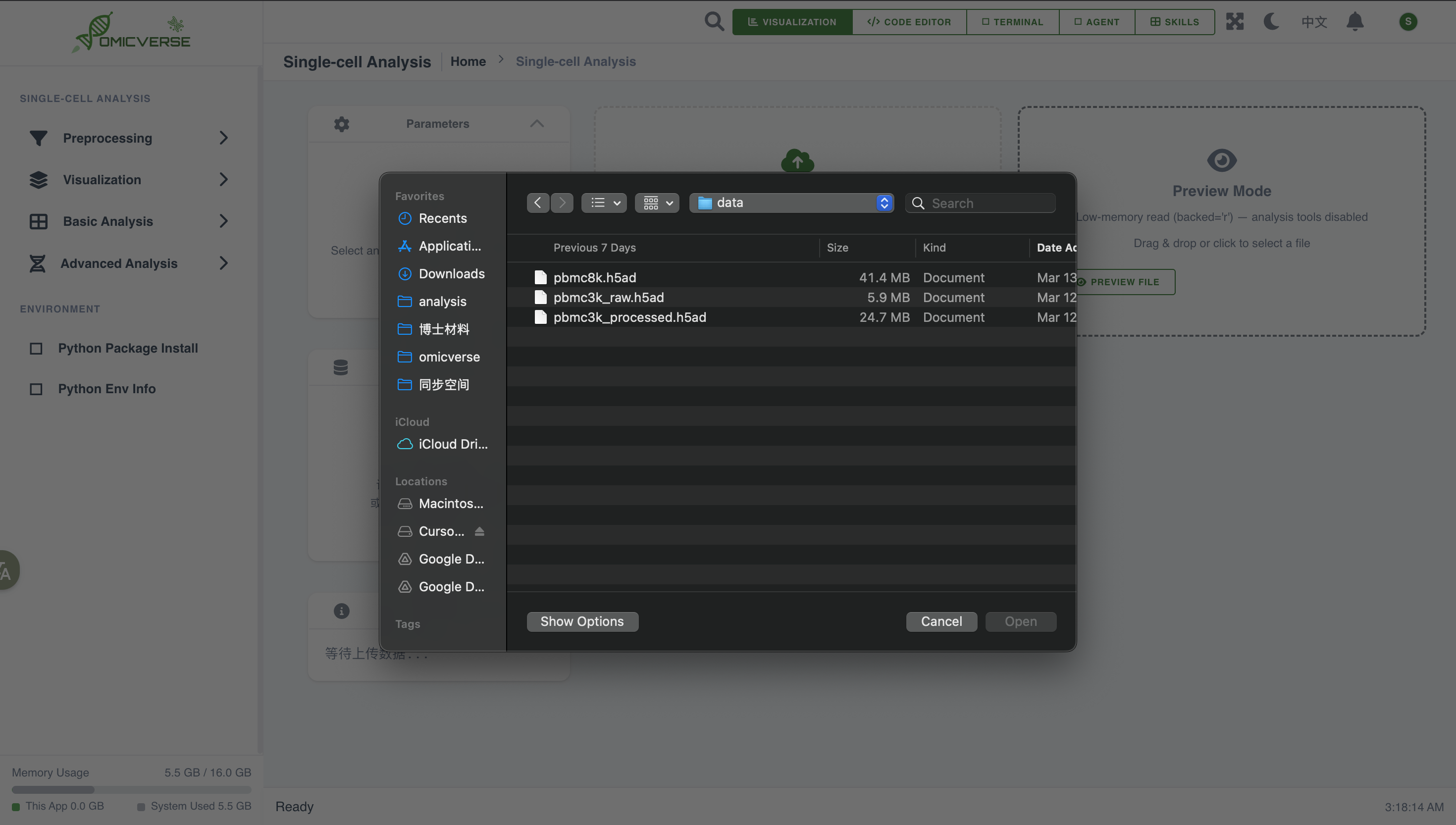
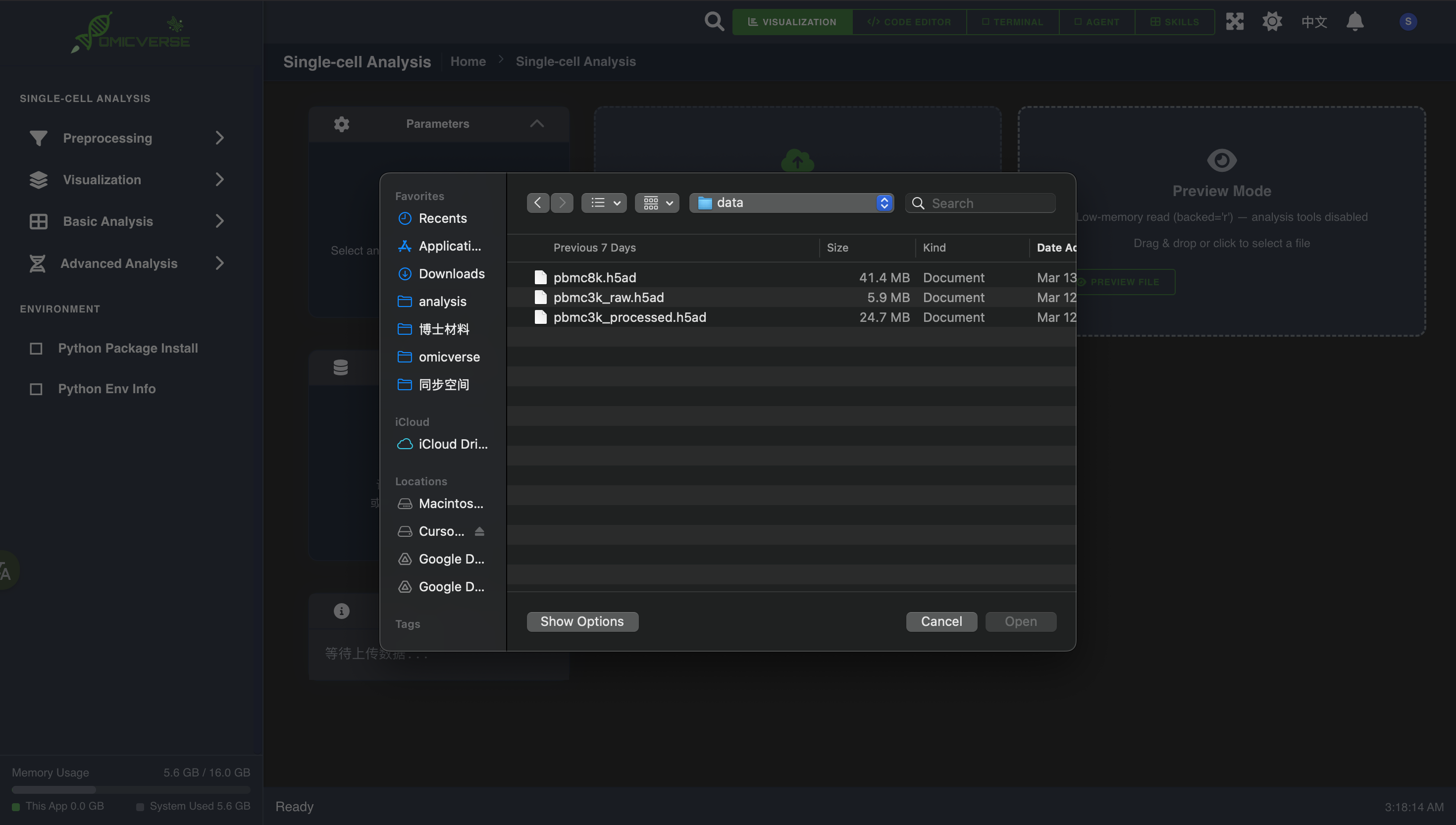
Once uploaded, the status bar displays basic data information:
✓ Data loaded
  Cells: 8,542 | Genes: 33,538
Supported format: Standard AnnData
.h5adfiles. To convert from other formats, use the Code Executor to load the file withscanpyand save it as.h5ad.
5. Preprocessing
Switch to the Preprocessing tab and execute each step in order.
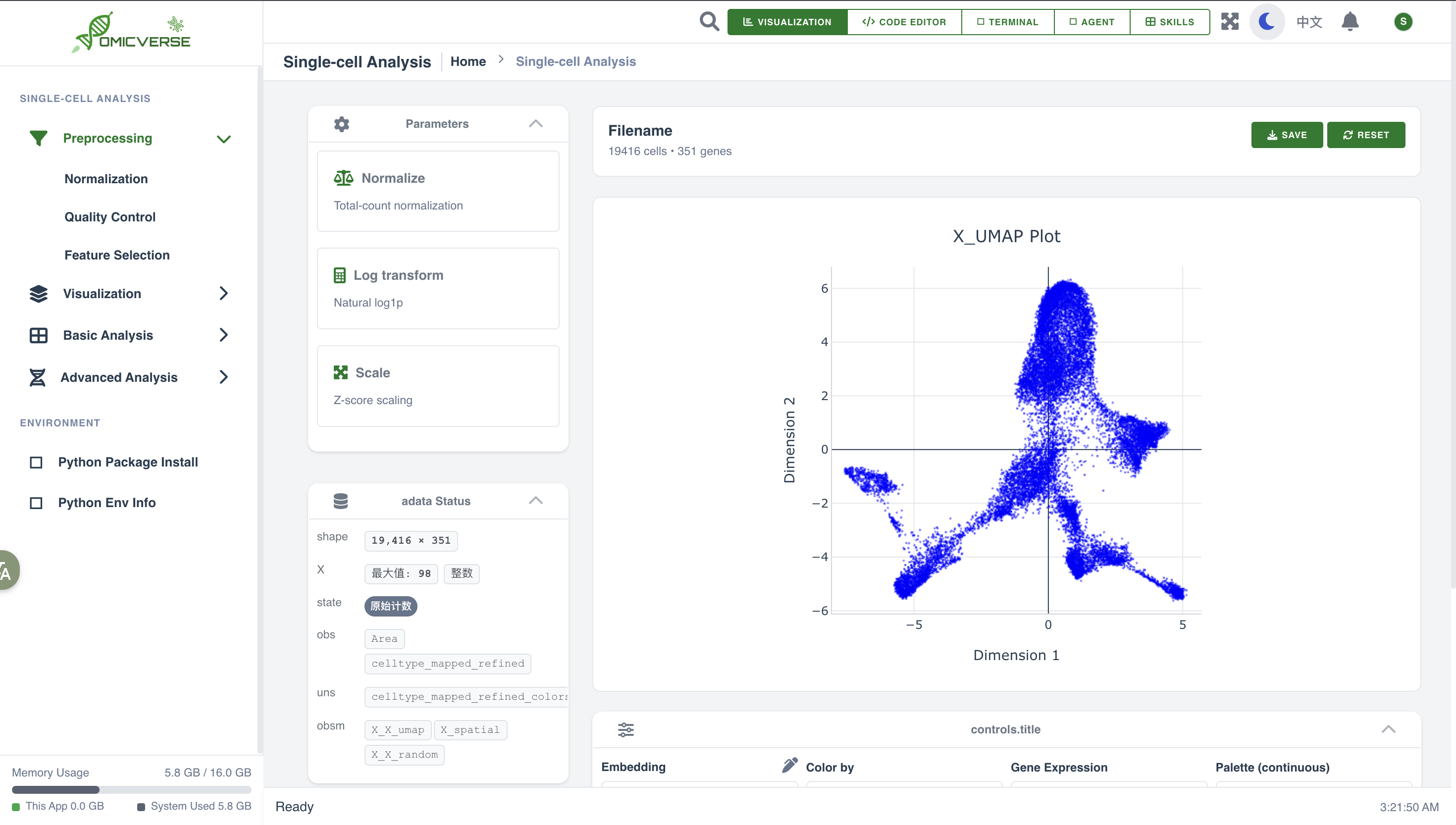
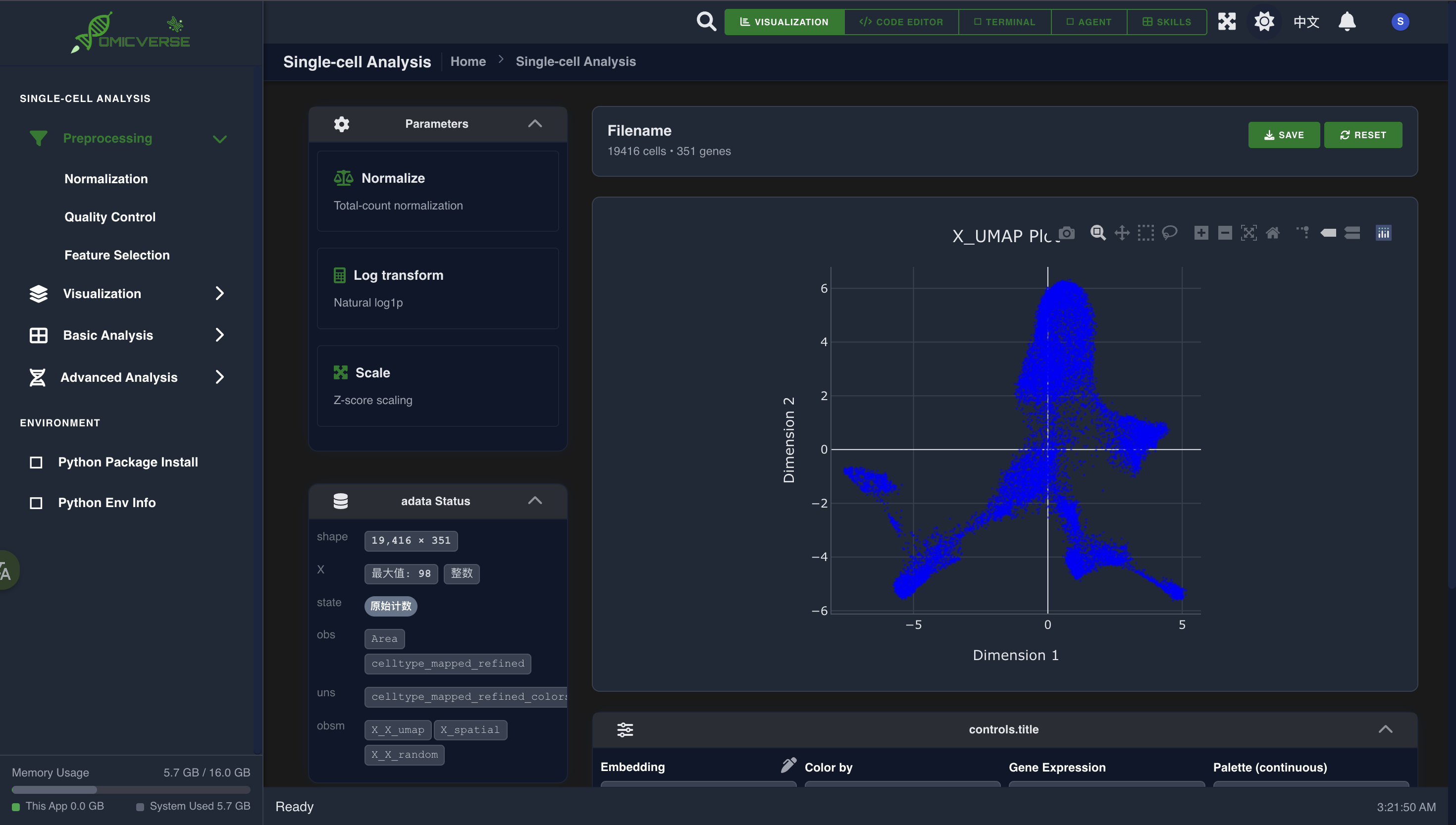
5.1 Filter Cells and Genes
Click the Filter Cells / Filter Genes tool card and set the thresholds:
| Parameter | Description | Recommended |
|---|---|---|
| Min genes per cell | Minimum number of genes detected per cell | 200 |
| Max genes per cell | Upper limit (to remove potential doublets) | 5000 |
| Min cells per gene | Minimum number of cells a gene must be expressed in | 3 |
| Max mito % | Maximum allowed mitochondrial gene fraction | 0.2 |
Click Run. The right panel shows a before/after comparison of cell and gene counts.
5.2 Normalization
Click Normalize to scale each cell's total UMI count to a common target (default: 10,000).
5.3 Log Transformation
Click Log1p to apply a log(1 + x) transformation, compressing the data distribution.
5.4 Highly Variable Gene Selection
Click HVG to select the most informative genes for downstream analysis:
| Parameter | Recommended |
|---|---|
| Top genes | 2000 |
| Flavor | seurat_v3 |
5.5 Scaling
Click Scale to apply per-gene z-score normalization (max_value defaults to 10).
6. Dimensionality Reduction & Visualization
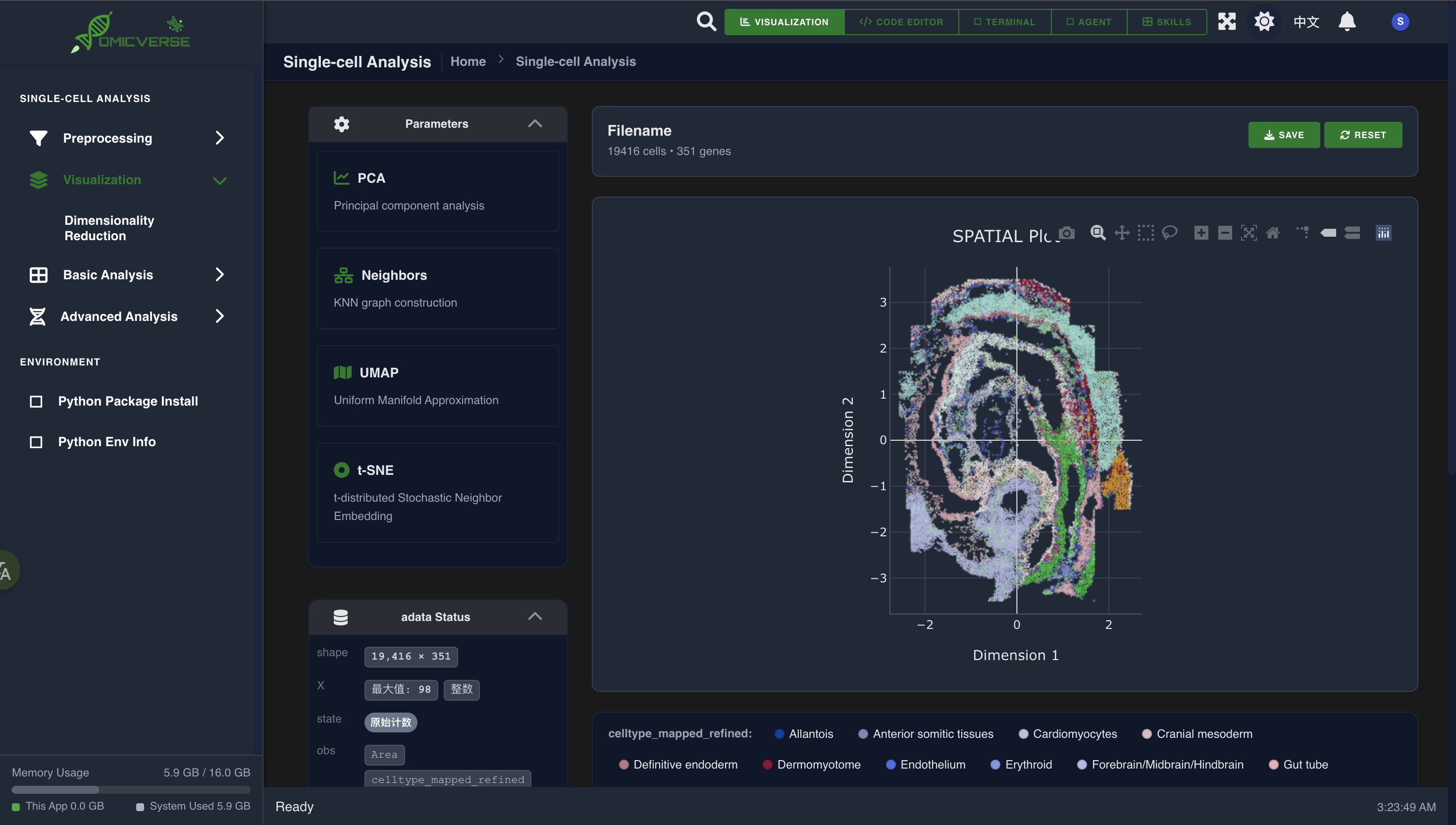
Switch to the Visualization tab.
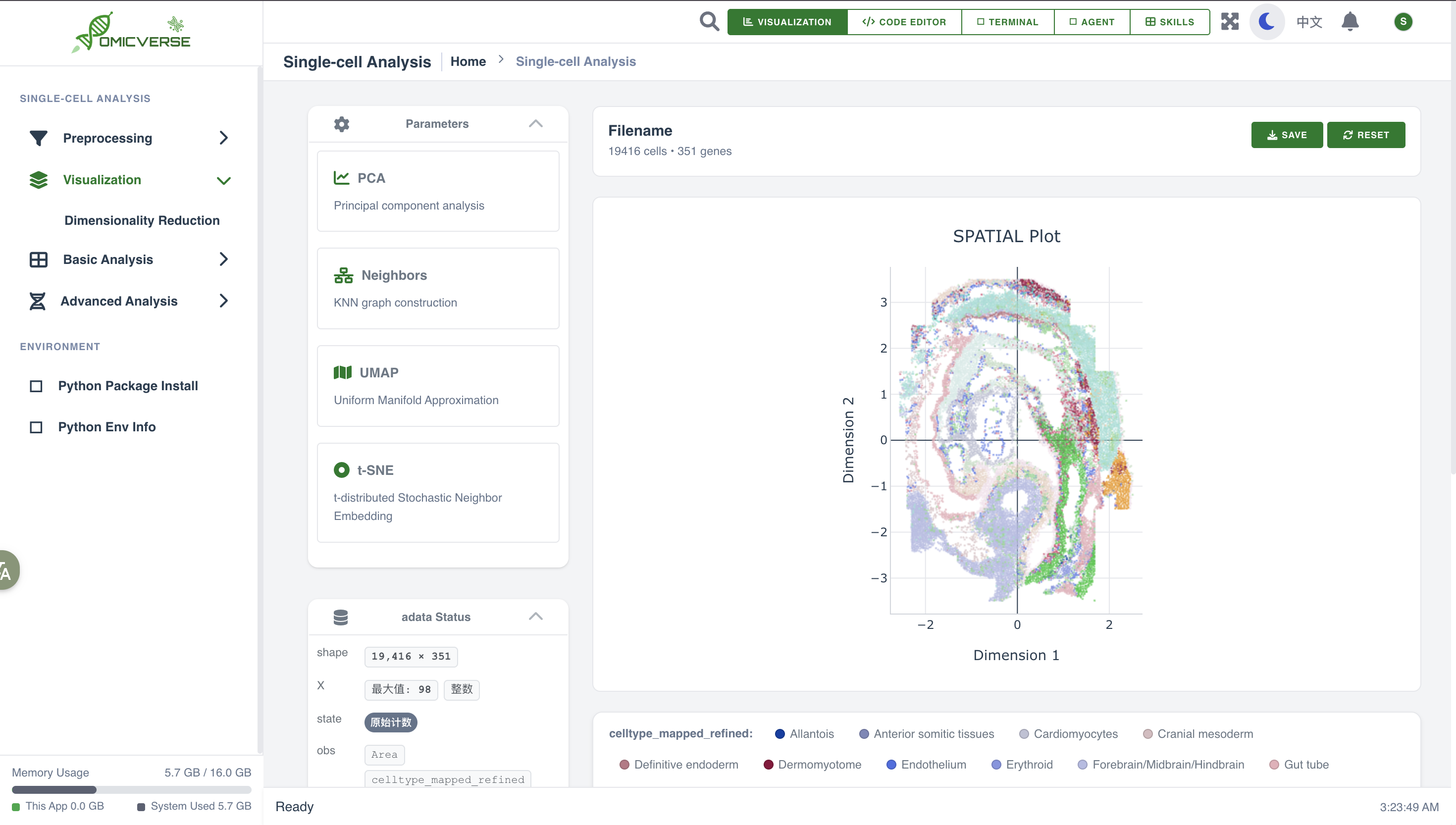
6.1 PCA
Click PCA, set the number of principal components (default: 50), and click Run.
6.2 Build Neighbor Graph
Click Neighbors:
| Parameter | Recommended | Description |
|---|---|---|
| n_neighbors | 15 | Number of neighbors — balances local vs. global UMAP structure |
| n_pcs | 40 | Number of PCs to use |
6.3 UMAP
Click UMAP. The embedding appears in the canvas on the right once complete.
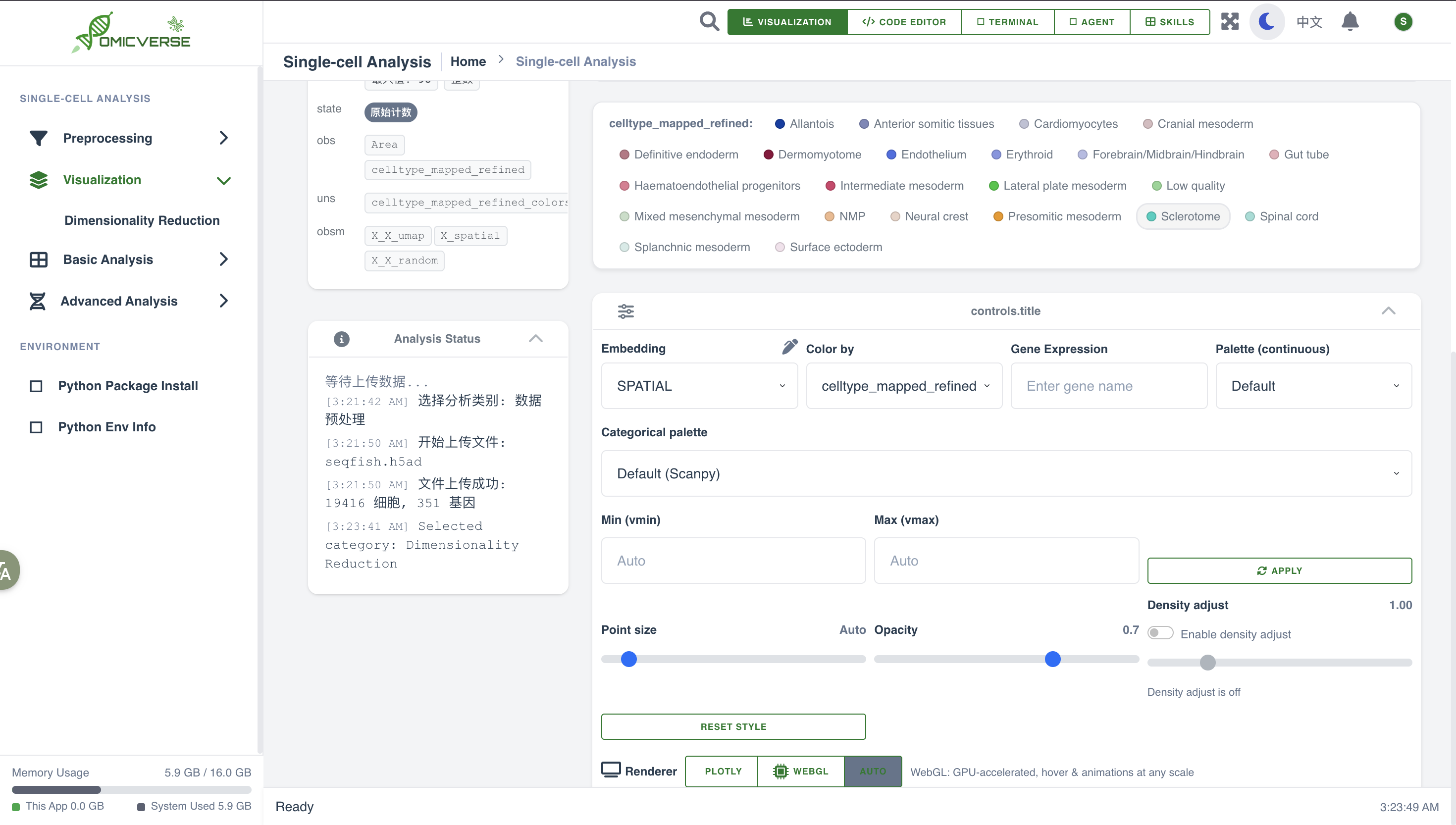
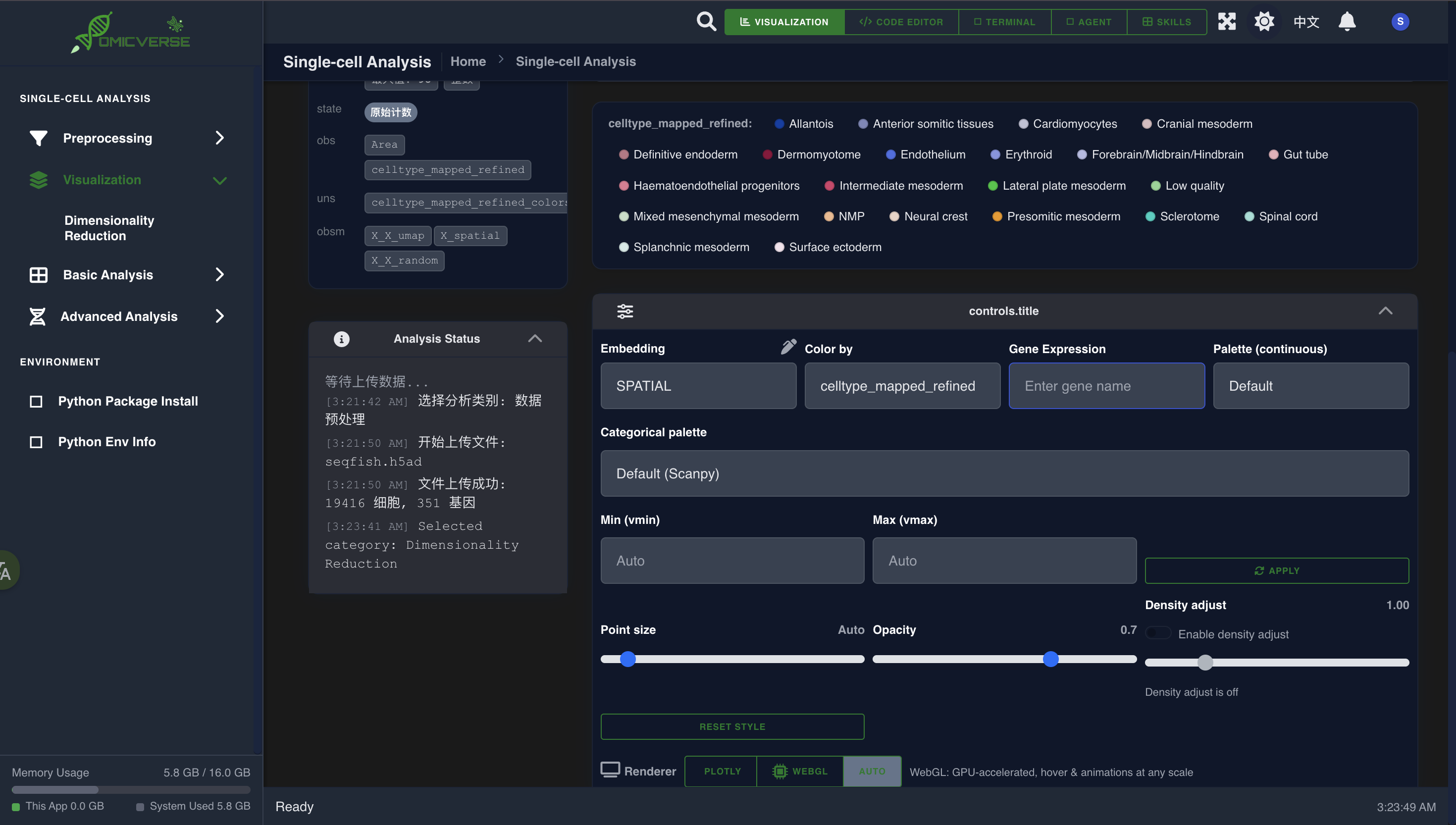
6.4 Adjusting Visualization Parameters
Use the controls above the plot to: - Switch Color by — color by gene expression, cell metadata, or cluster labels - Adjust point size and opacity - Switch the rendering backend (Standard / Rasterized / GPU)
GPU rendering mode: Recommended for datasets with more than 100,000 cells. Powered by WebGL for smooth real-time pan and zoom.
7. Clustering
Switch to the Clustering tab.
Leiden Clustering (Recommended)
| Parameter | Description |
|---|---|
| Resolution | Controls granularity — higher values produce more clusters (recommended: 0.3–1.0) |
Click Run. Results are written to adata.obs['leiden'] and the UMAP plot updates automatically.
8. Cell Annotation
Switch to the Annotation tab, which offers three annotation methods.
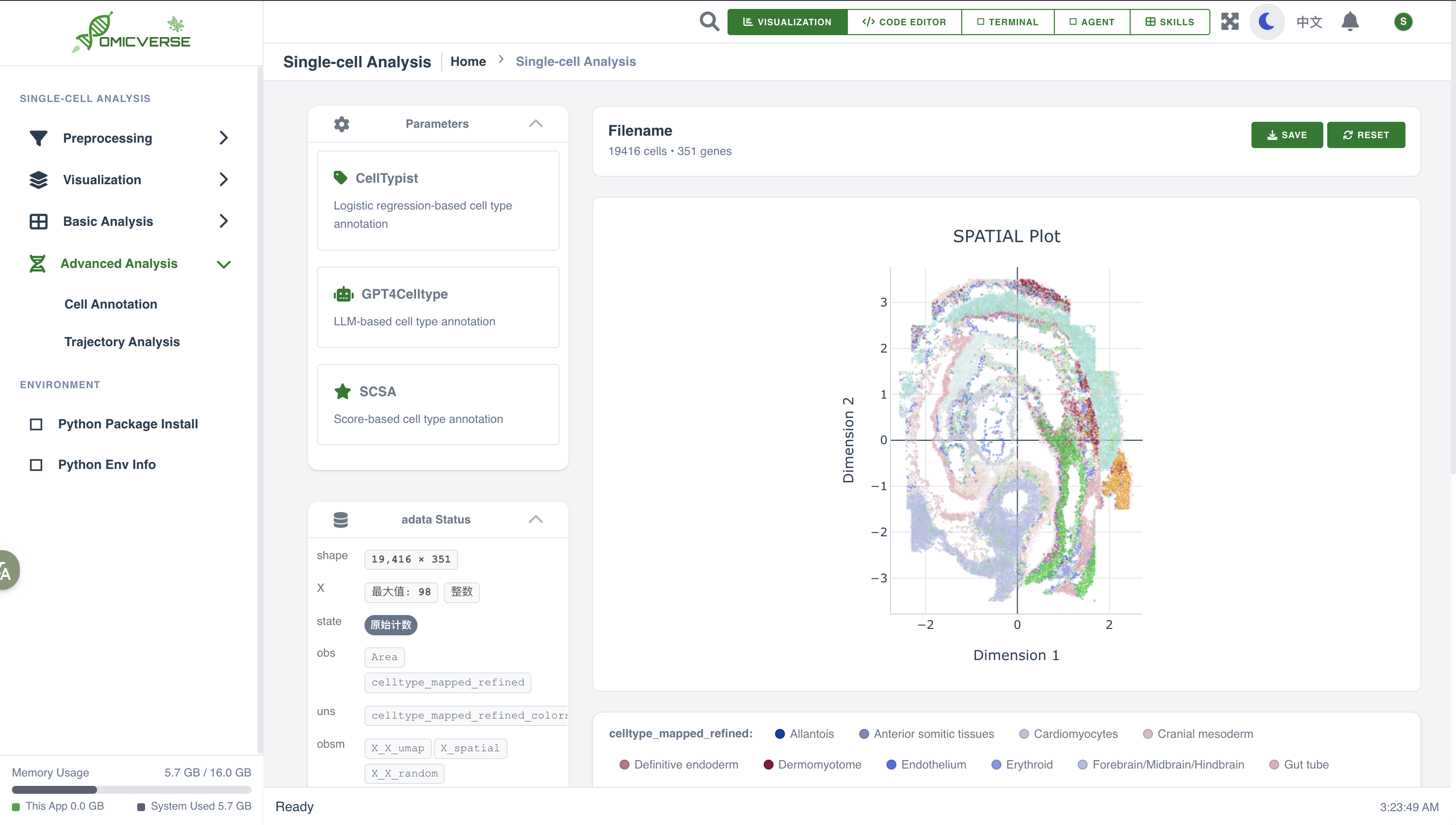
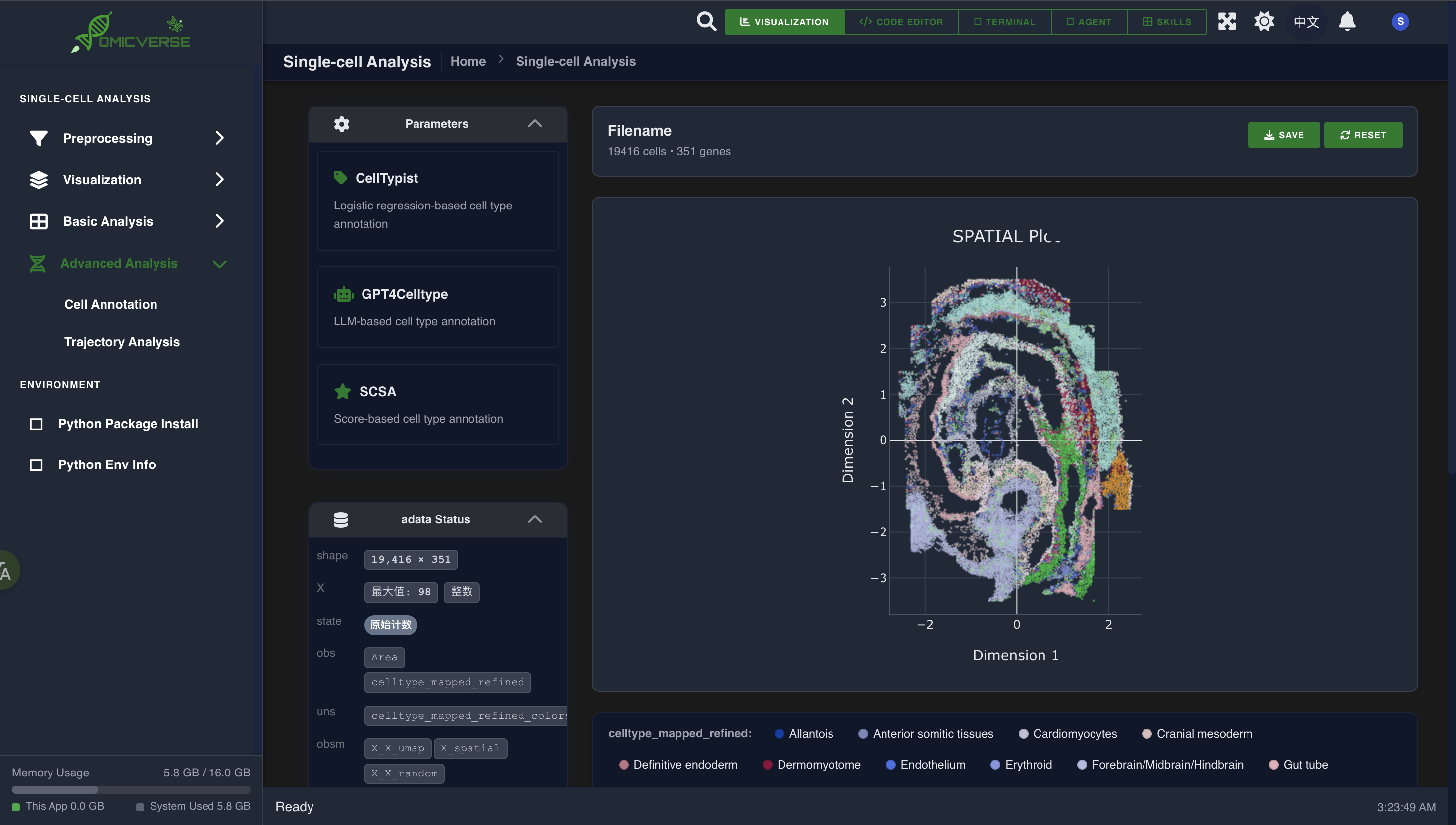
8.1 CellTypist (Recommended — pretrained model)
Select a model that matches your sample type:
| Model | Best for |
|---|---|
| Immune_All_Low.pkl | Fine-grained immune cell classification |
| Immune_All_High.pkl | Coarse-grained immune cell classification |
| Human_Lung_Atlas.pkl | Human lung cells |
Enable Majority Voting (neighborhood-based smoothing for consistency) and click Run.
8.2 SCSA (Database Matching)
Select the species (Human / Mouse), specify the cluster column (leiden), and click Run.
8.3 AI-Assisted Annotation (GPT-4)
Enter your OpenAI API Key and set the number of top marker genes per cluster (default: 10). Click Run — the AI infers cell types from marker genes and provides a written explanation.
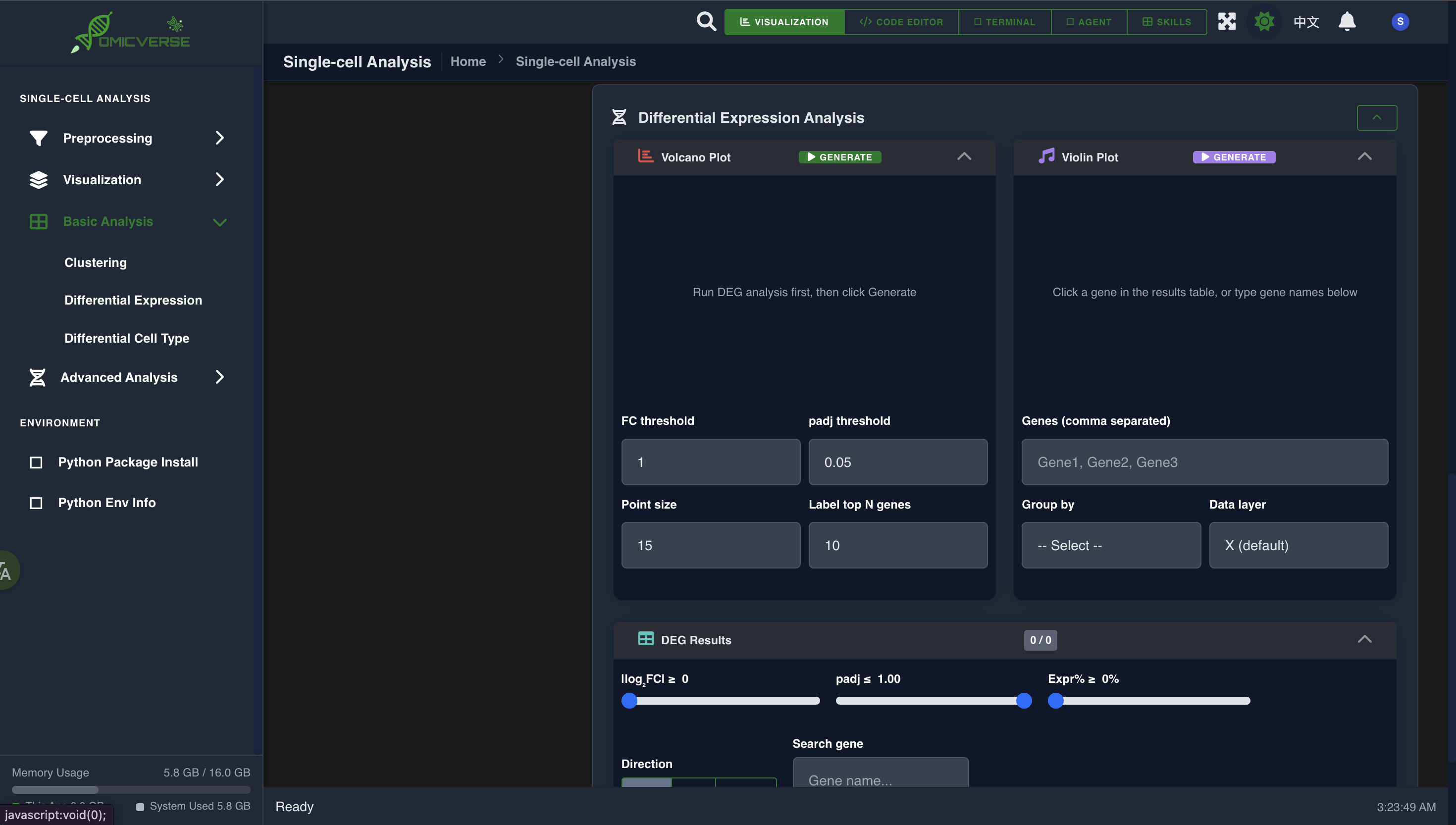
9. Differential Gene Expression
Switch to the DEG tab.
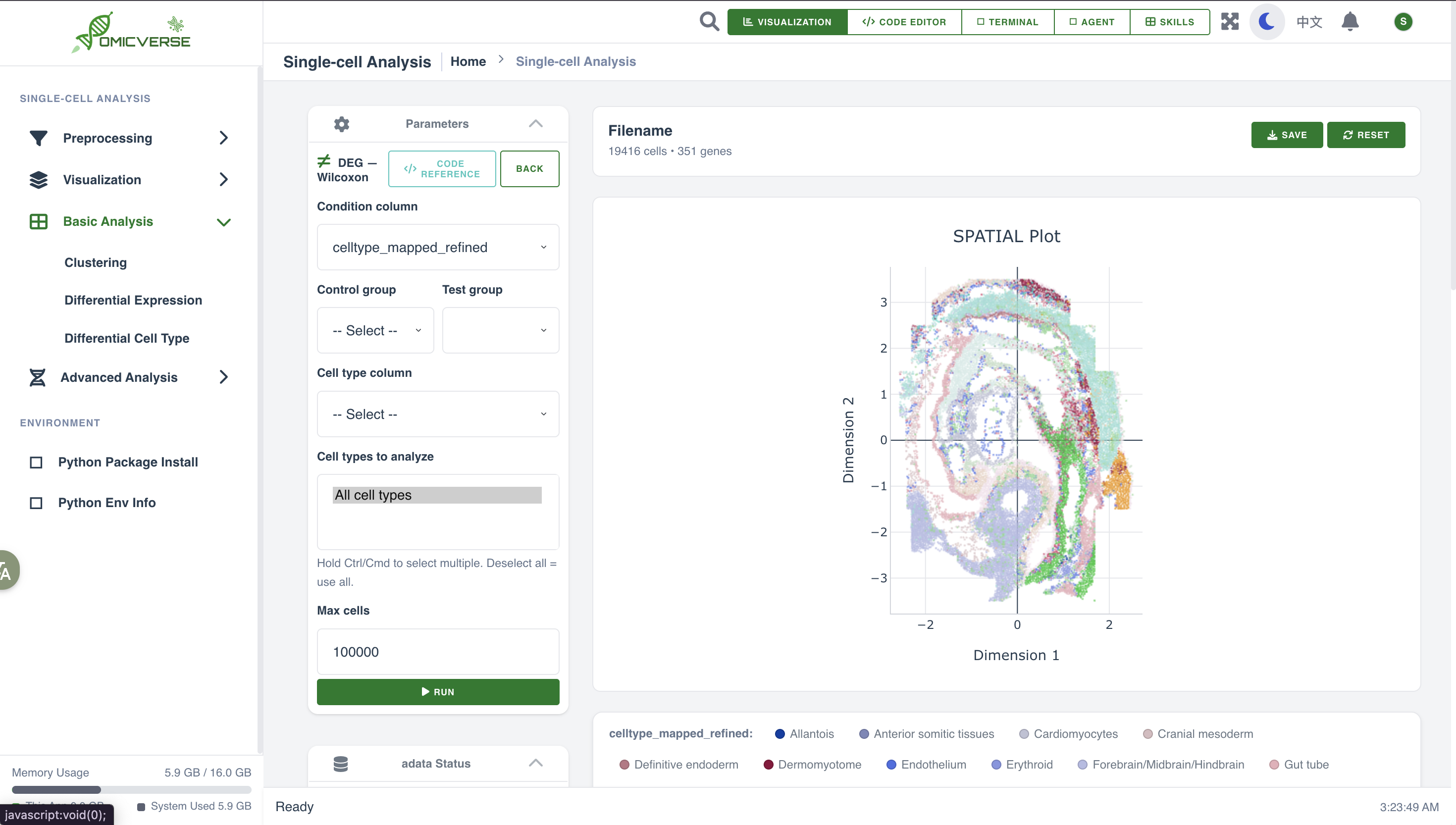
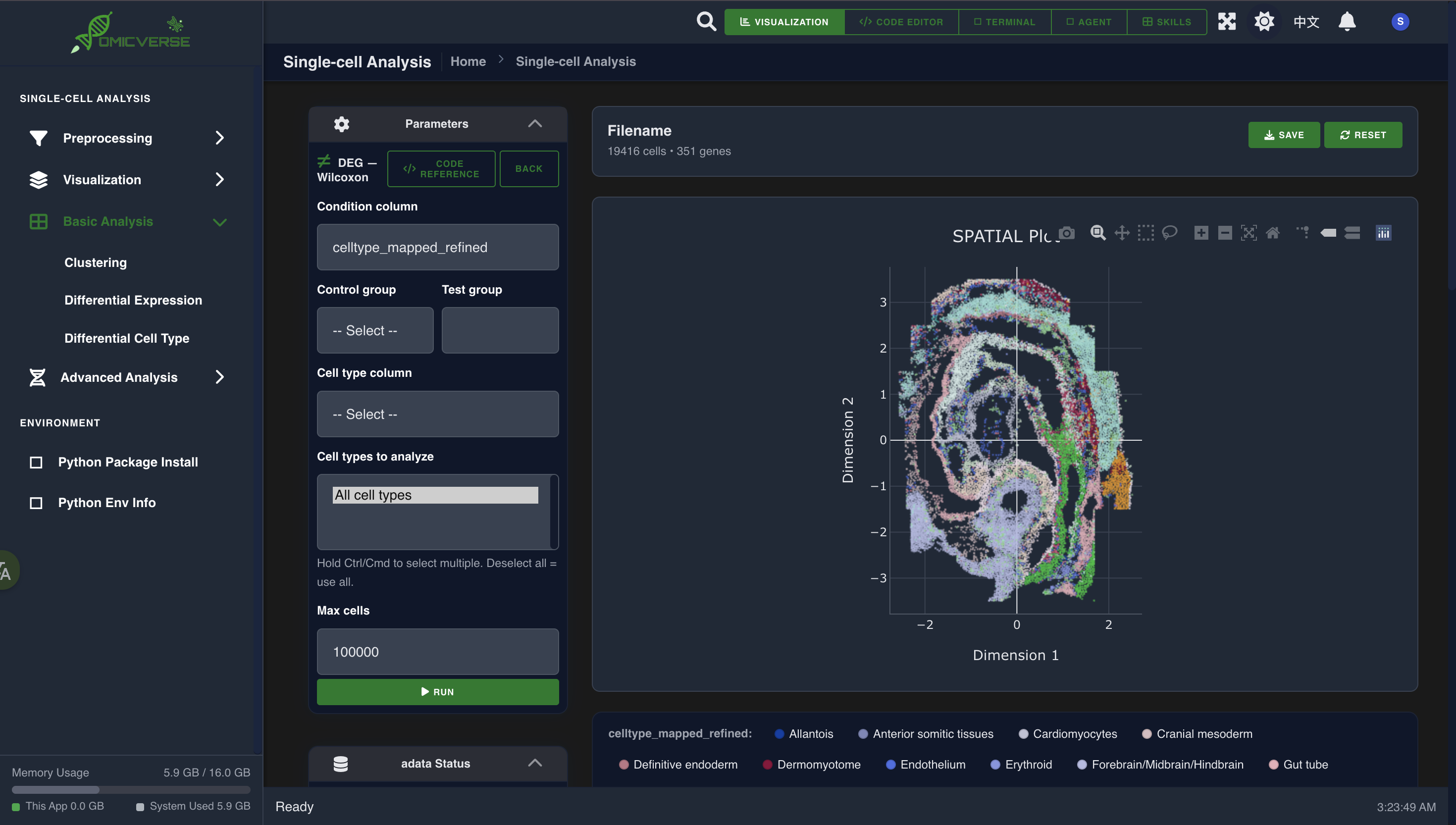
9.1 Configure the Comparison
- Group by — select the grouping column (e.g.,
cell_typeorleiden) - Group 1 — select the experimental group
- Group 2 — select the reference group (or choose
restfor all other cells) - Method — choose a statistical test: wilcoxon / t-test / mannwhitney
Click Analyze.
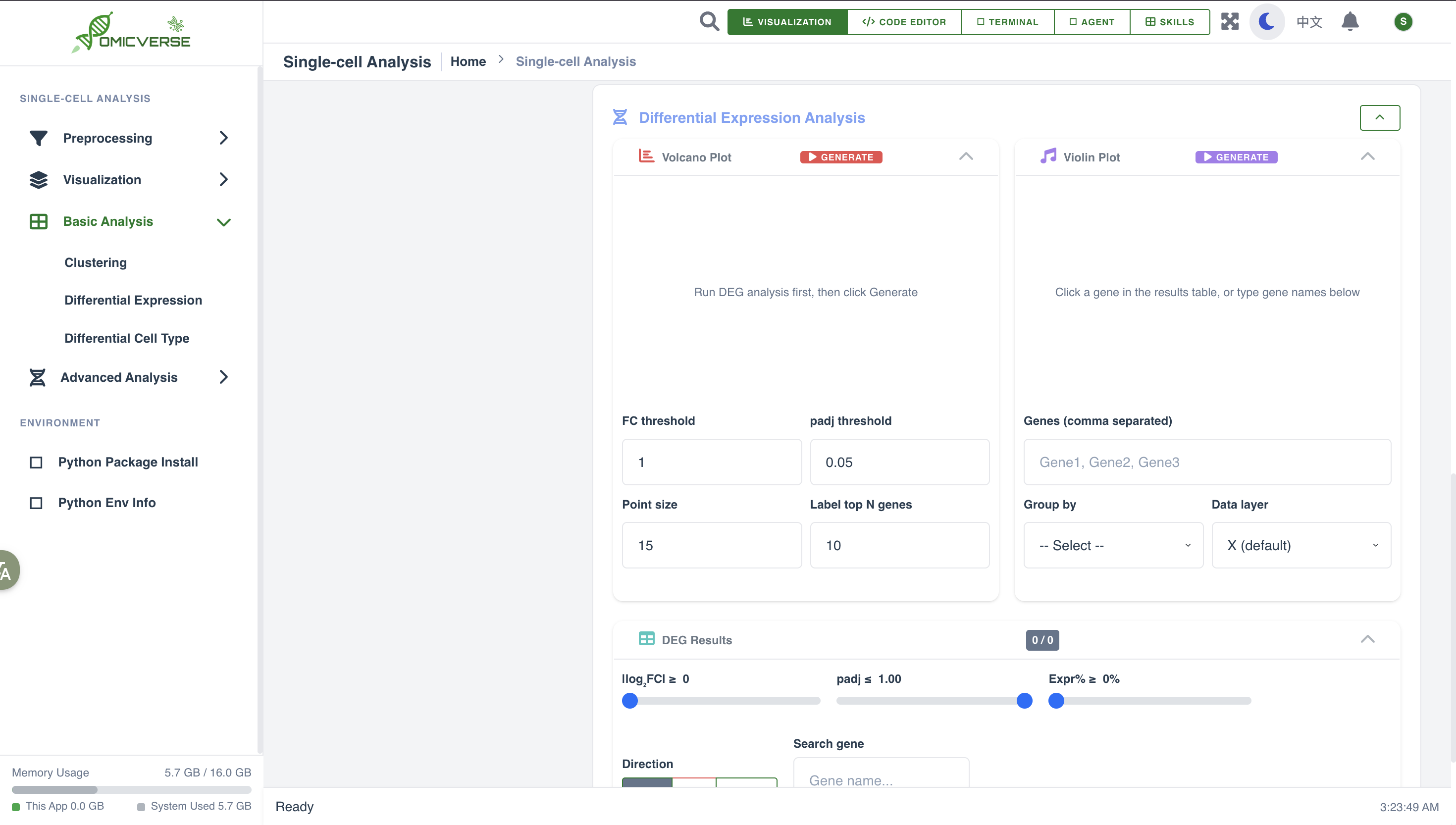
9.2 Viewing Results
After analysis, the following are displayed automatically:
-
Volcano plot — Log2FC on the x-axis, −log10(p-value) on the y-axis; click a point to highlight that gene
-
Results table — all differentially expressed genes with statistics, sortable by FDR or Log2FC
-
Violin plot — click any gene in the table to view its expression distribution across the two groups
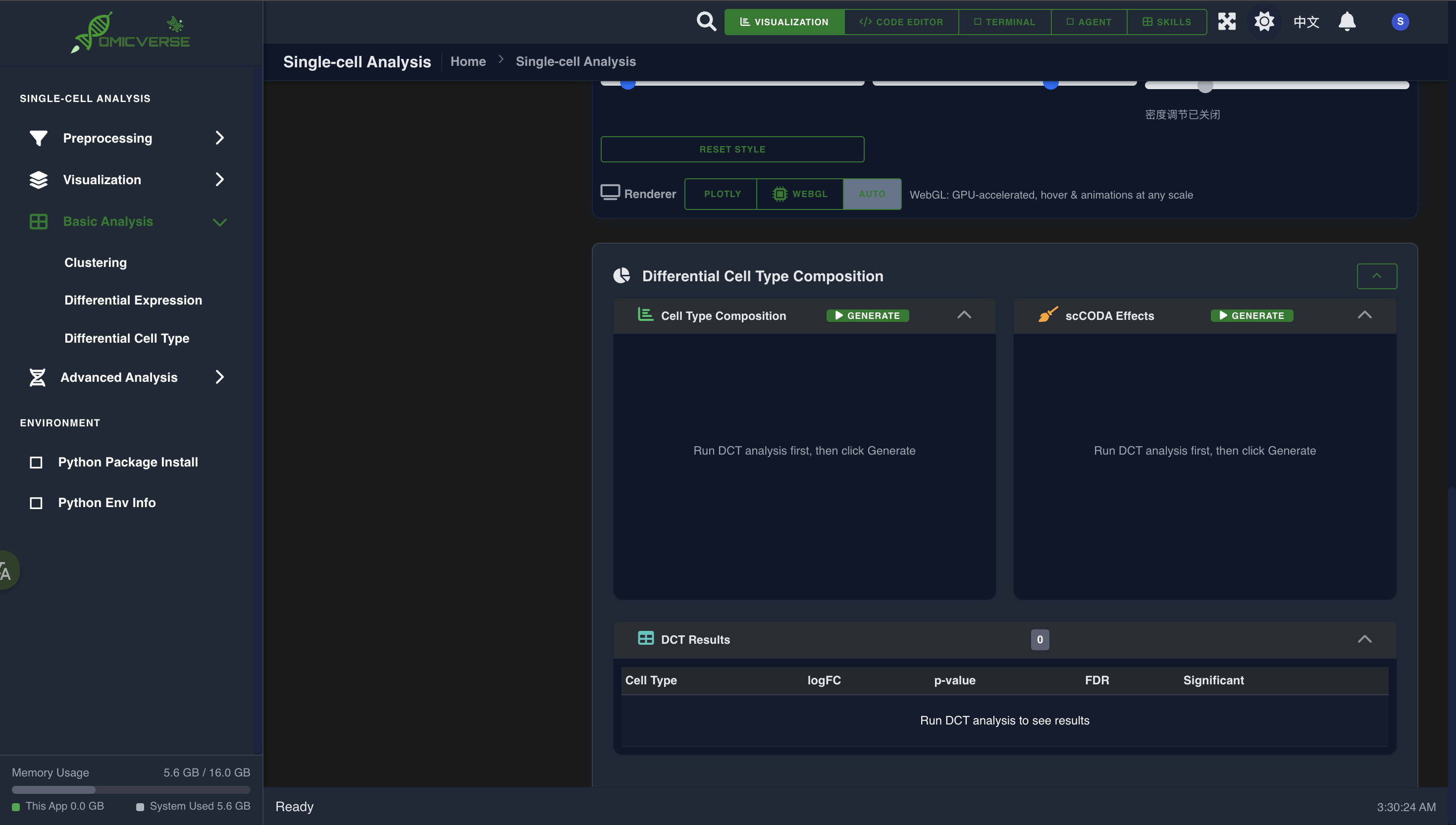
10. Differential Cell Type Composition
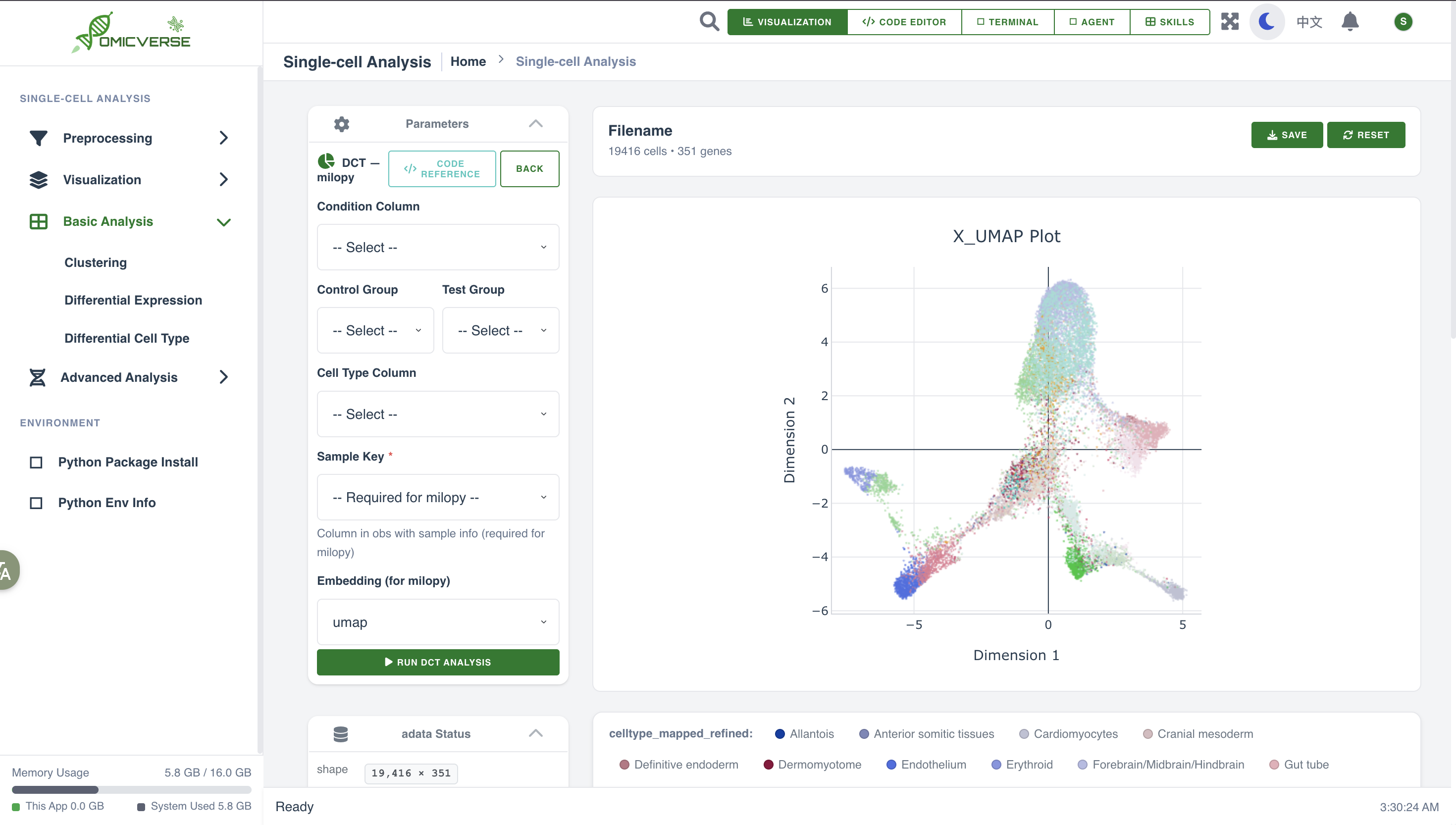
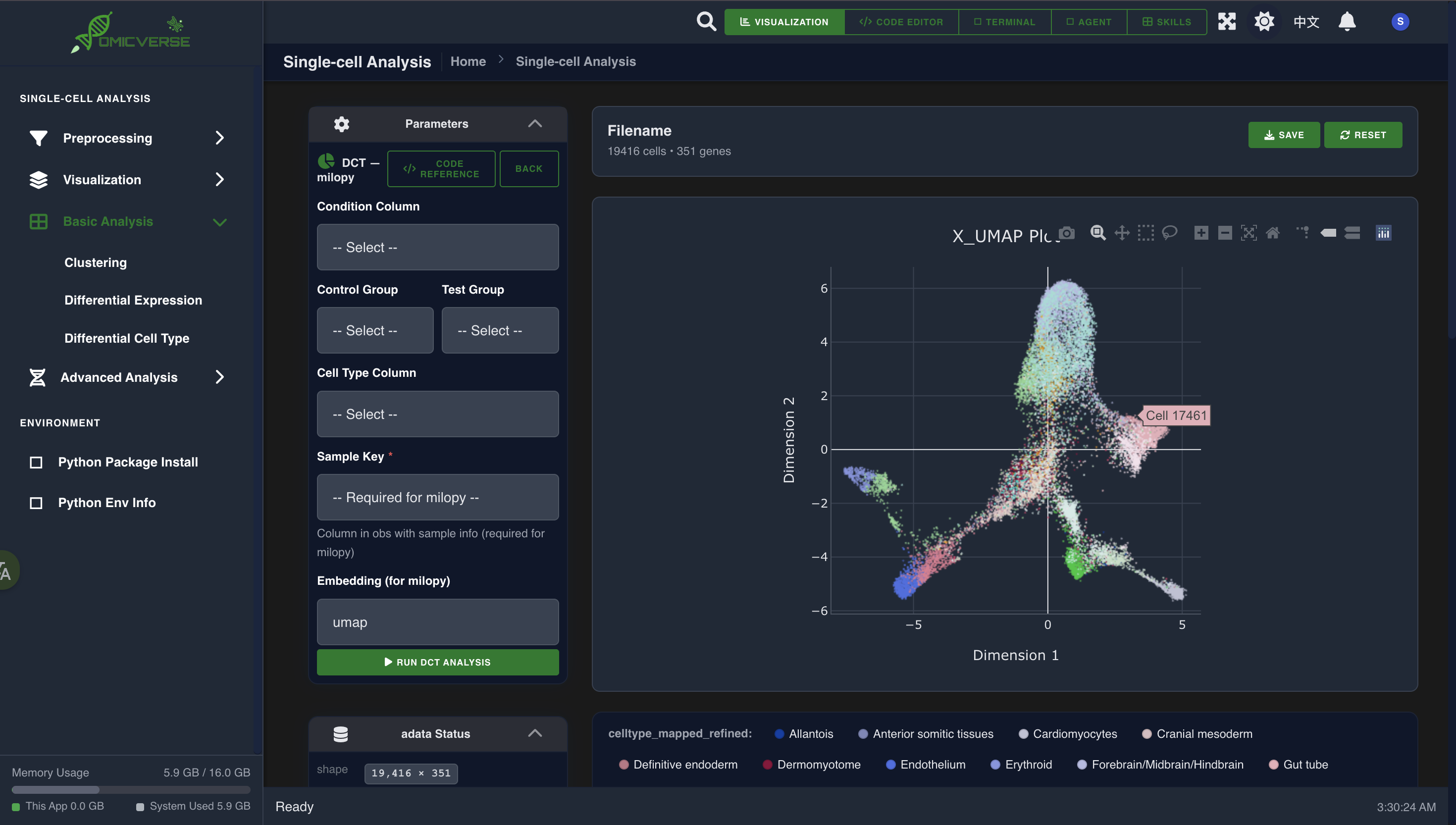
Switch to the DCT tab to analyze changes in cell type proportions across sample conditions.
Parameters
| Parameter | Description |
|---|---|
| Cell type column | Column name for cell types (e.g., cell_type) |
| Sample column | Column name for sample identifiers |
| Condition column | Column name for the condition (e.g., disease vs control) |
| Reference cell type | Reference cell type for sccoda (required) |
| Method | sccoda or Milo |
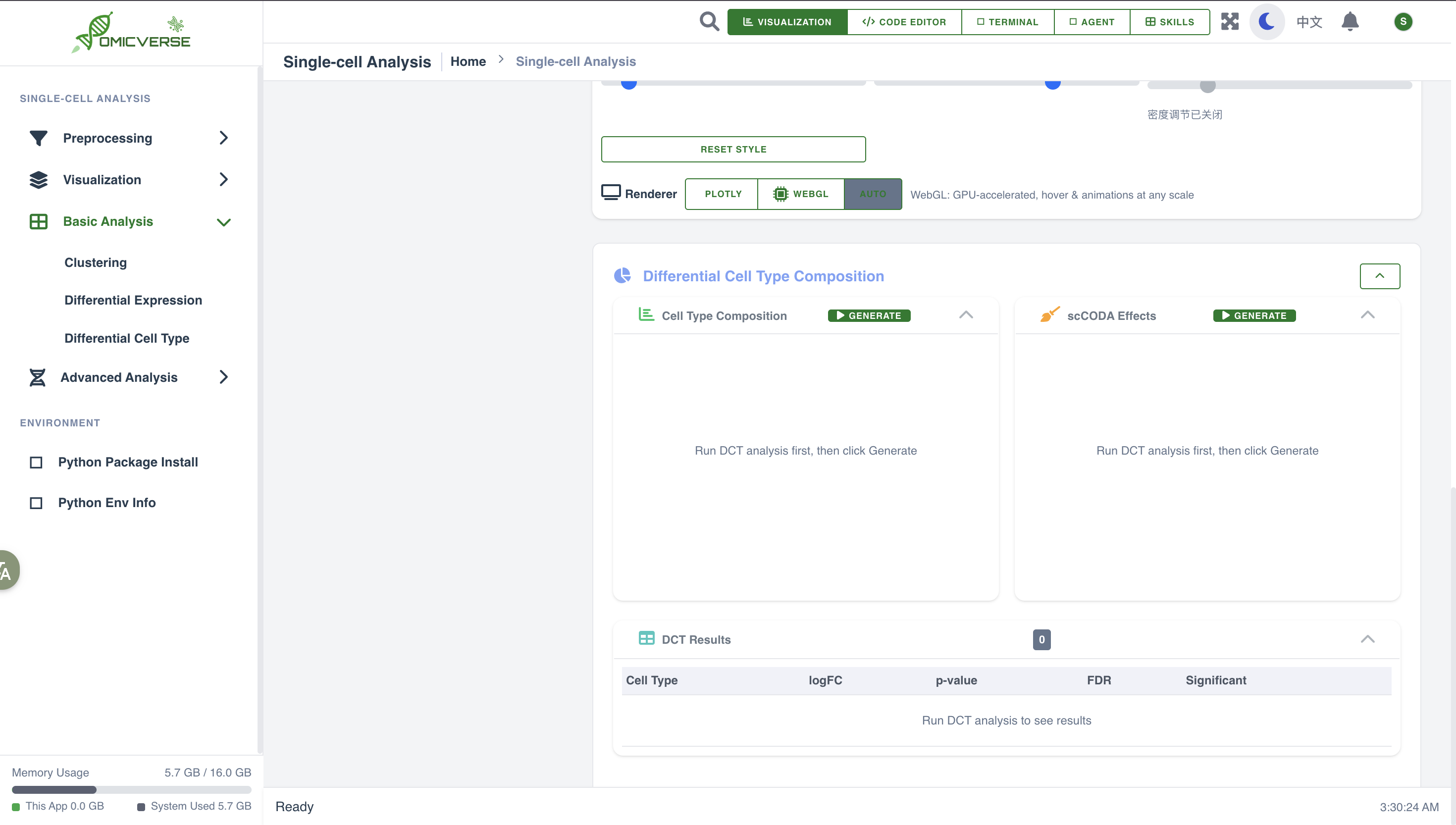
Click Run to generate: - Composition bar chart — stacked bar plot of cell type proportions per sample
- Effect size plot — highlights cell types with significant compositional changes
12. Code Executor
For custom analyses, click the Code button in the top-right corner to open the built-in code editor.
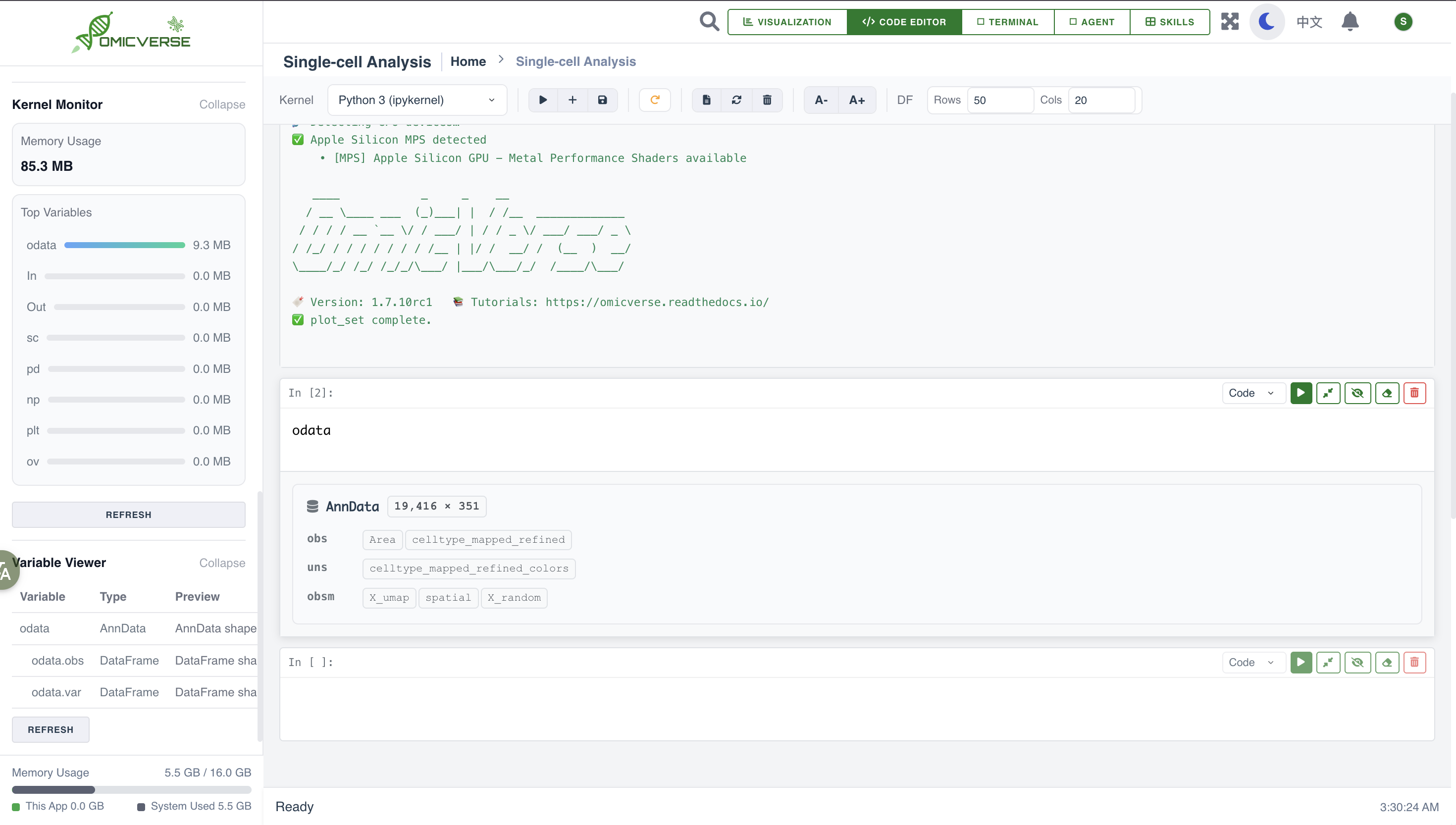
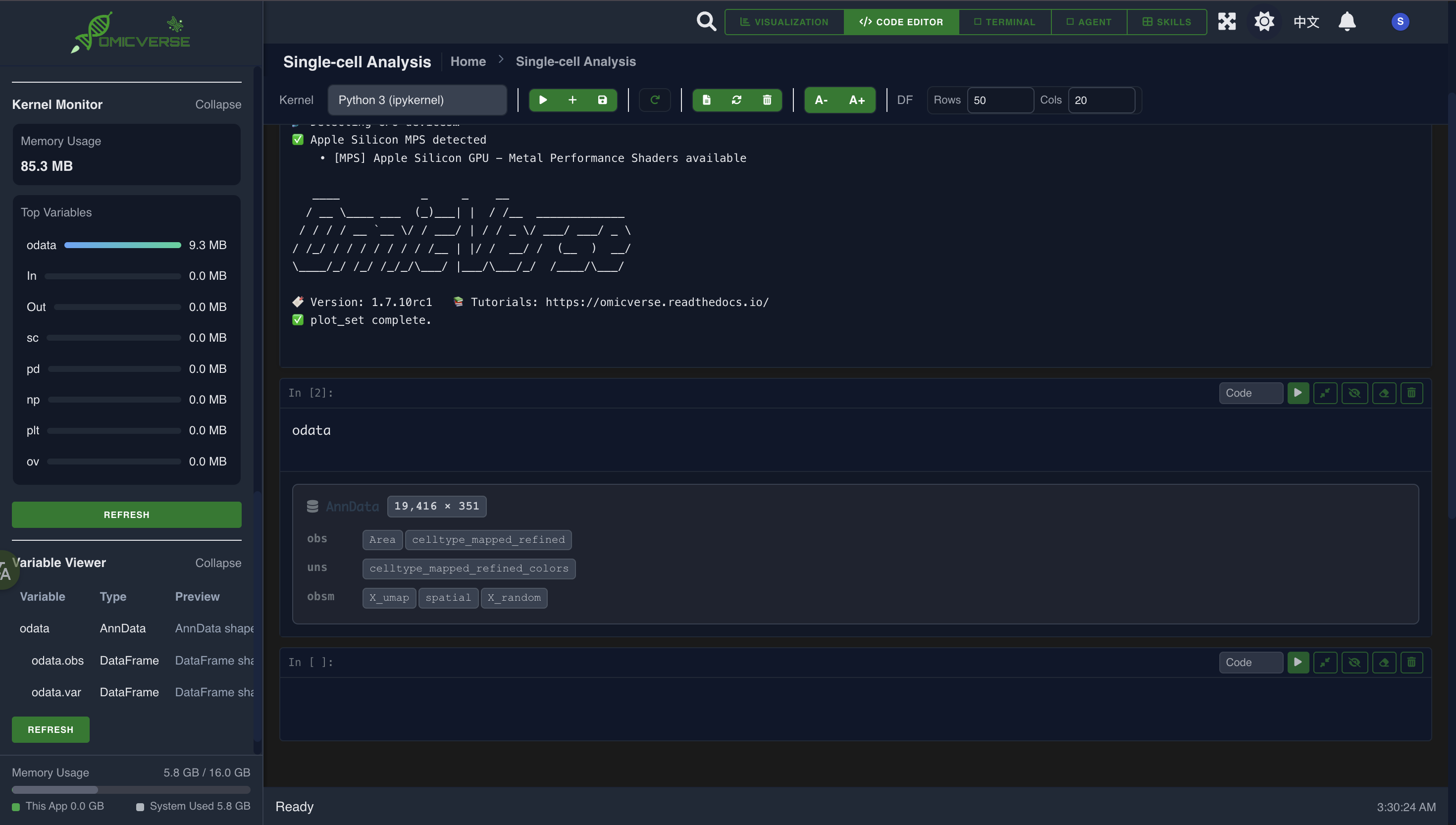
The kernel is pre-populated with the following variables, ready to use:
sc      # scanpy
pd      # pandas
np      # numpy
plt     # matplotlib.pyplot
odata   # the current AnnData object
Example usage:
# Inspect the data
print(odata)

# Violin plot for a specific gene
sc.pl.violin(odata, keys='CD3D', groupby='leiden')
plt.show()

# Save the current results
odata.write_h5ad('result.h5ad')
Press Shift+Enter to execute. Output appears in real time below the editor.
13. AI Agent
The AI Agent understands natural language and automatically generates and executes analysis code on your behalf.
13.1 Configuration
Click the Agent icon in the sidebar to expand the configuration panel:
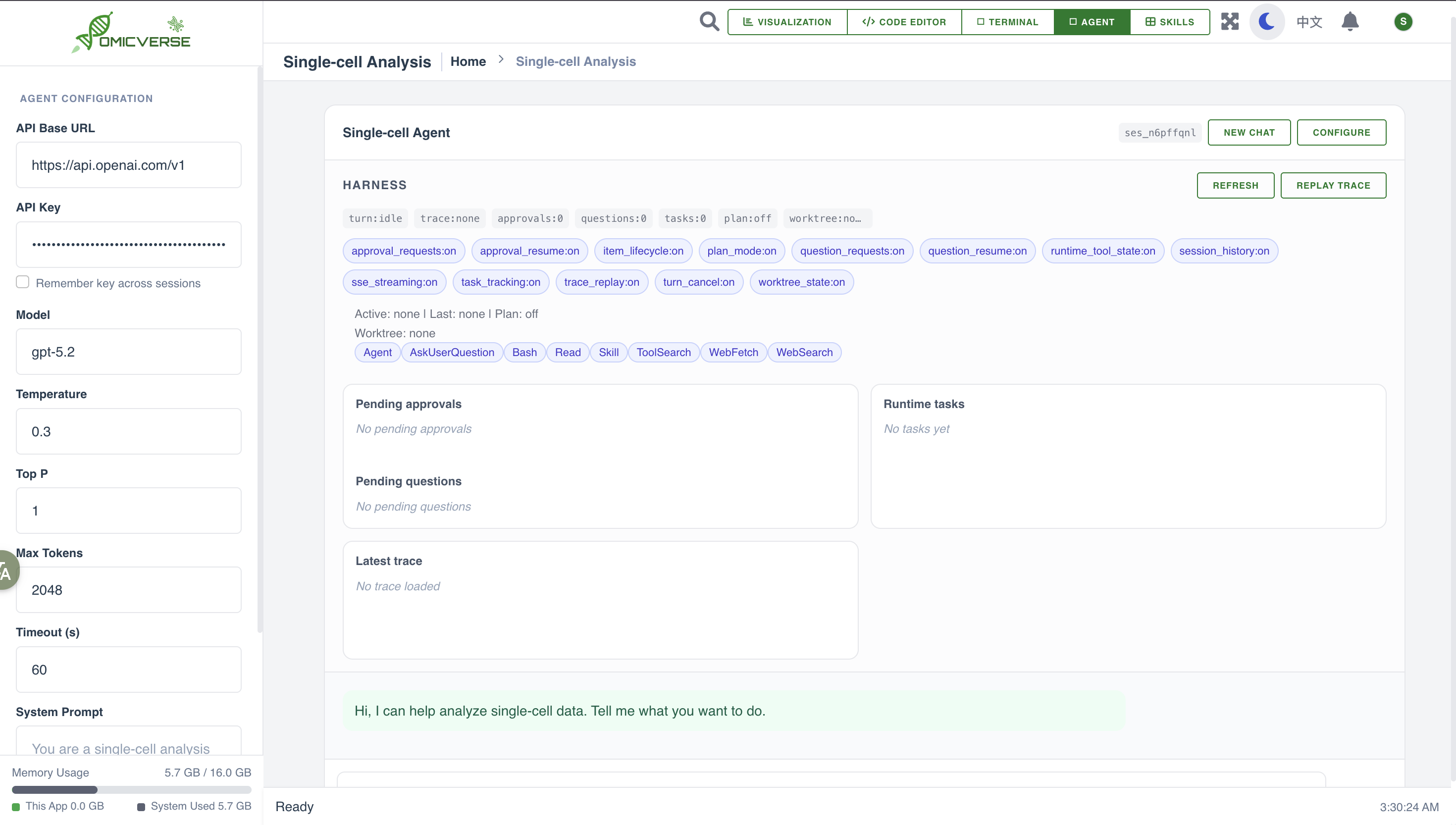
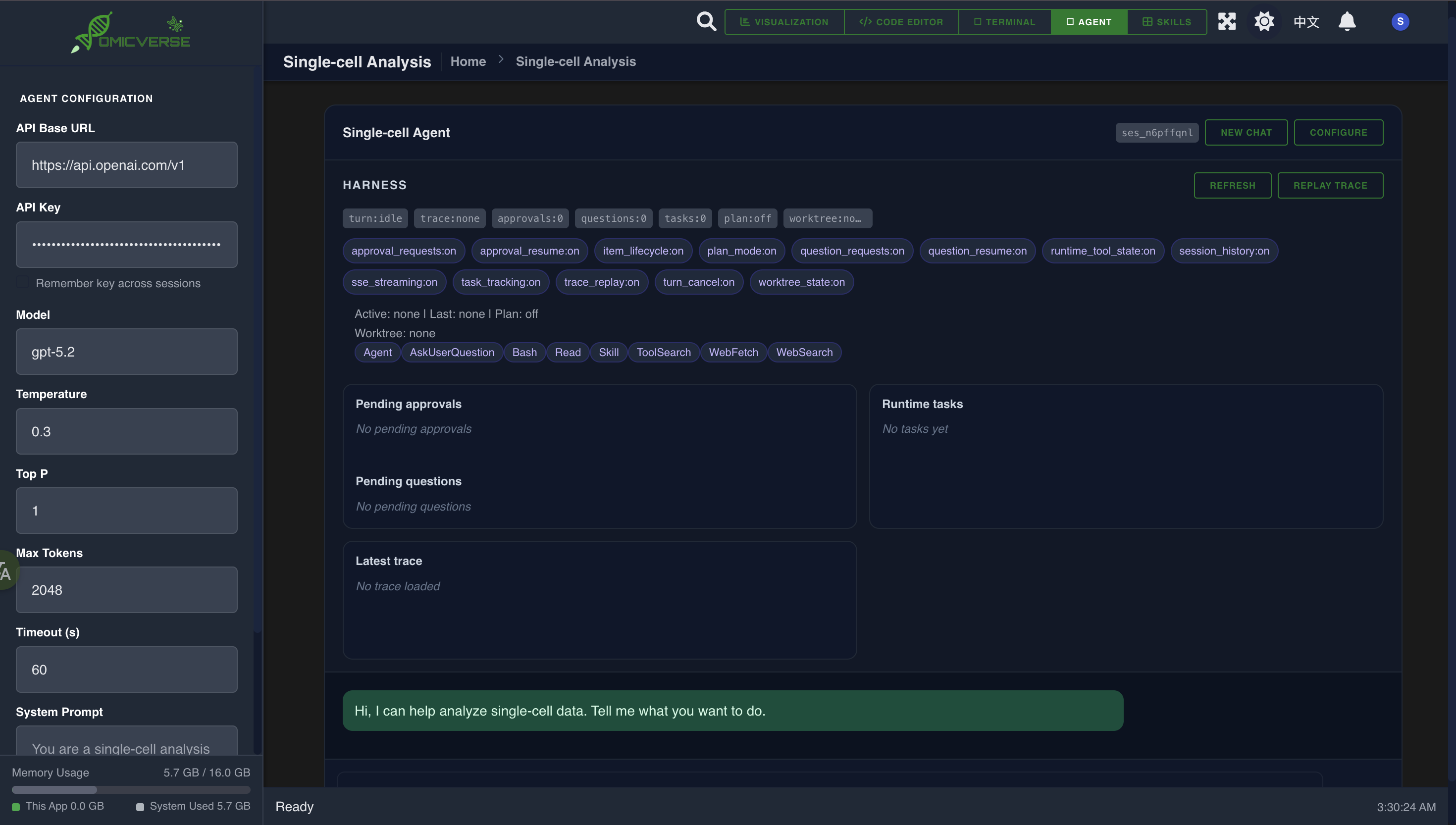
| Field | Description |
|---|---|
| API Key | Your Claude or OpenAI API key |
| Model | e.g., claude-opus-4-6, gpt-4o |
| Endpoint | Custom API endpoint (optional, OpenAI-compatible) |
13.2 How to Use
Type your task in the chat box and press Send:
Example prompts:
Run Leiden clustering with resolution 0.5, then show the UMAP colored by cluster
Find the top 20 differentially expressed genes between CD4 T cells and CD8 T cells, and plot a volcano
My data has multiple batches in the 'batch' column. Run Harmony batch correction and recompute the UMAP
The Agent displays each step: reasoning → code generation → execution → result figure.
14. File Manager & Terminal
14.1 File Browser
Click the 📁 icon in the left sidebar to expand the file browser.
Supported actions (right-click context menu):
- Create folder / file
- Rename / delete / copy / paste
- Double-click to open
.h5ad,.ipynb, text files, and images
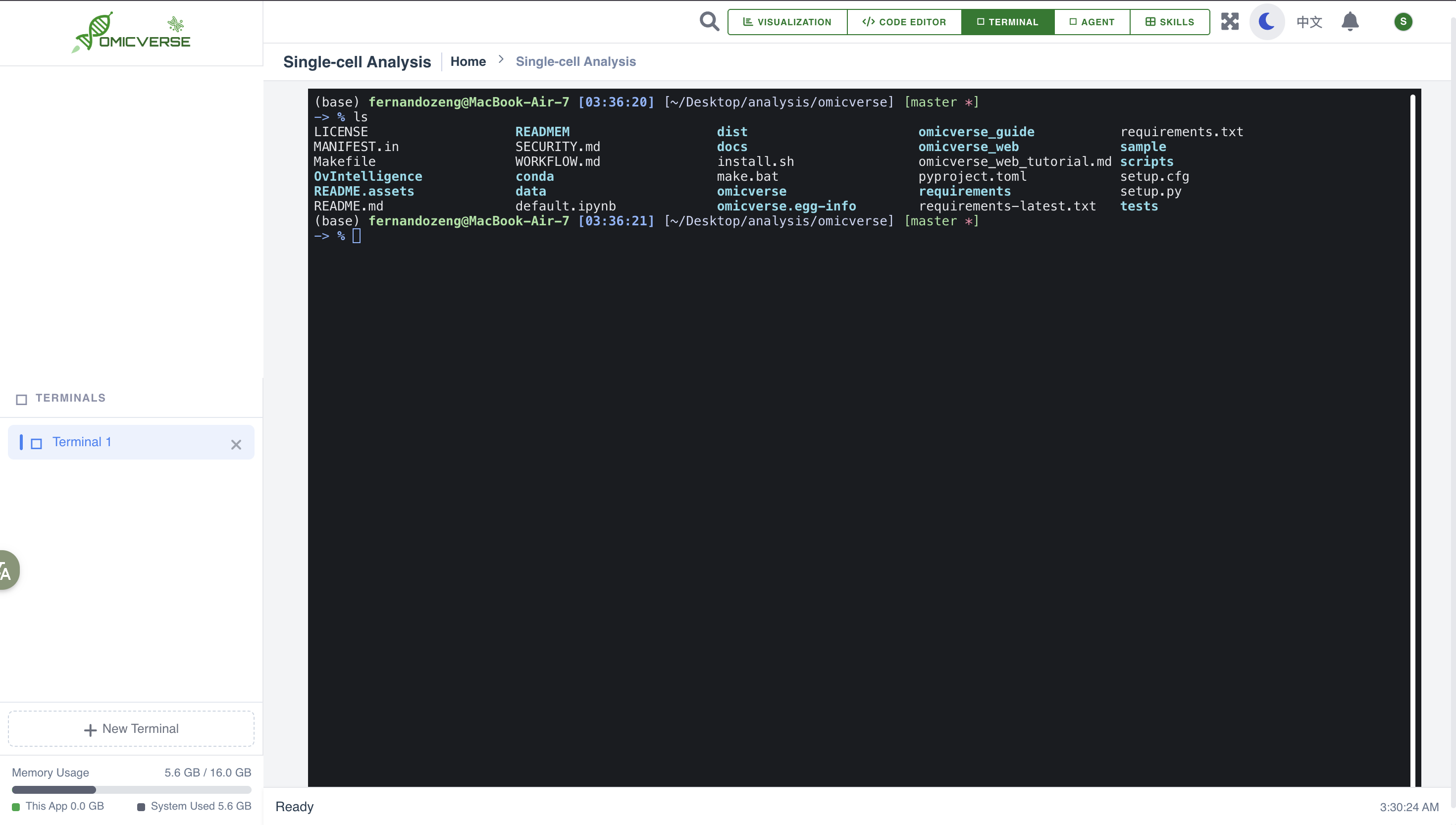
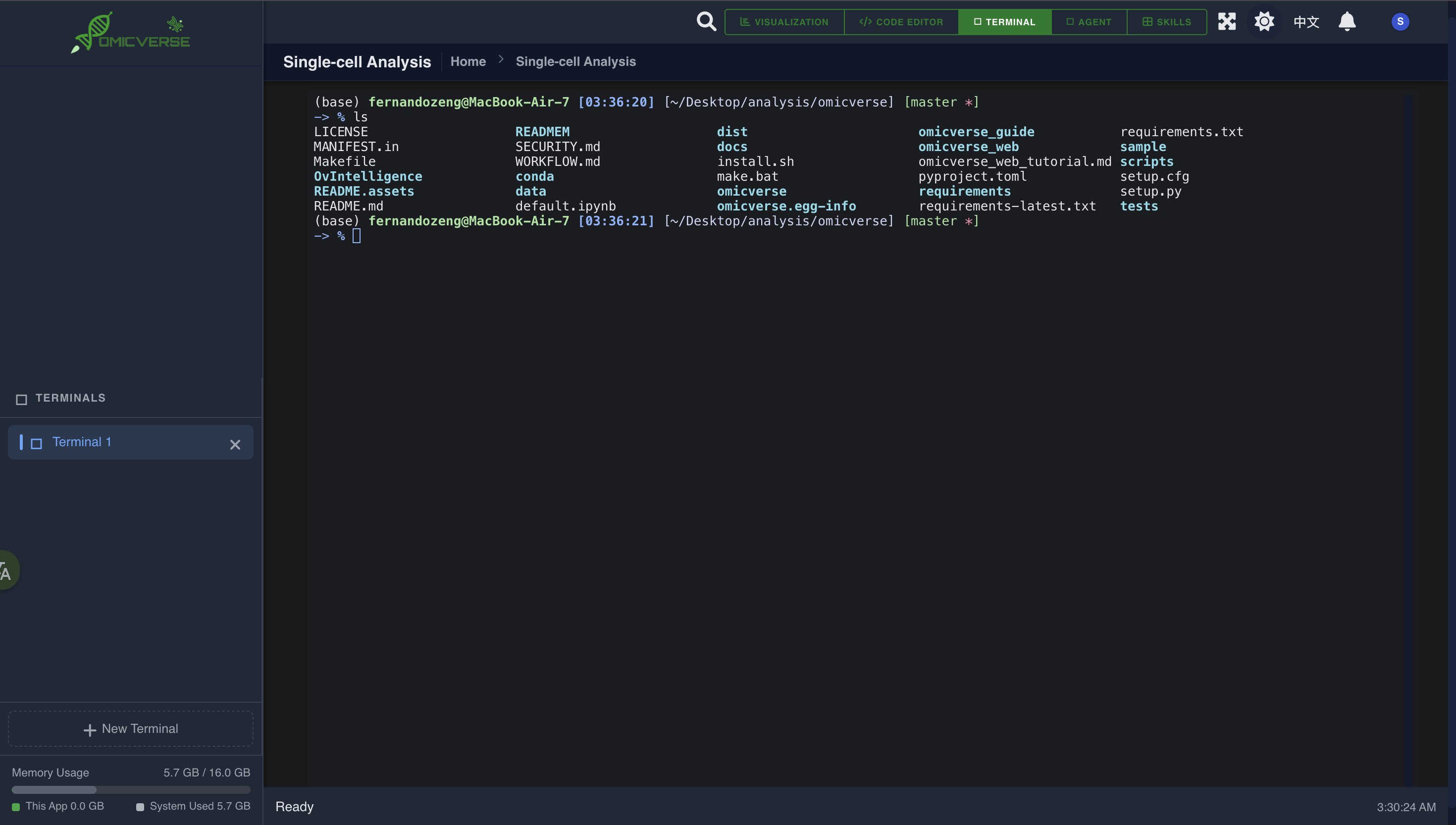
14.2 Built-in Terminal
Click the 💻 icon in the left sidebar to create a shell session (bash / zsh) and run any command:
# Install additional packages
pip install harmonypy

# Check GPU status
nvidia-smi

# Run a custom script
python my_analysis.py
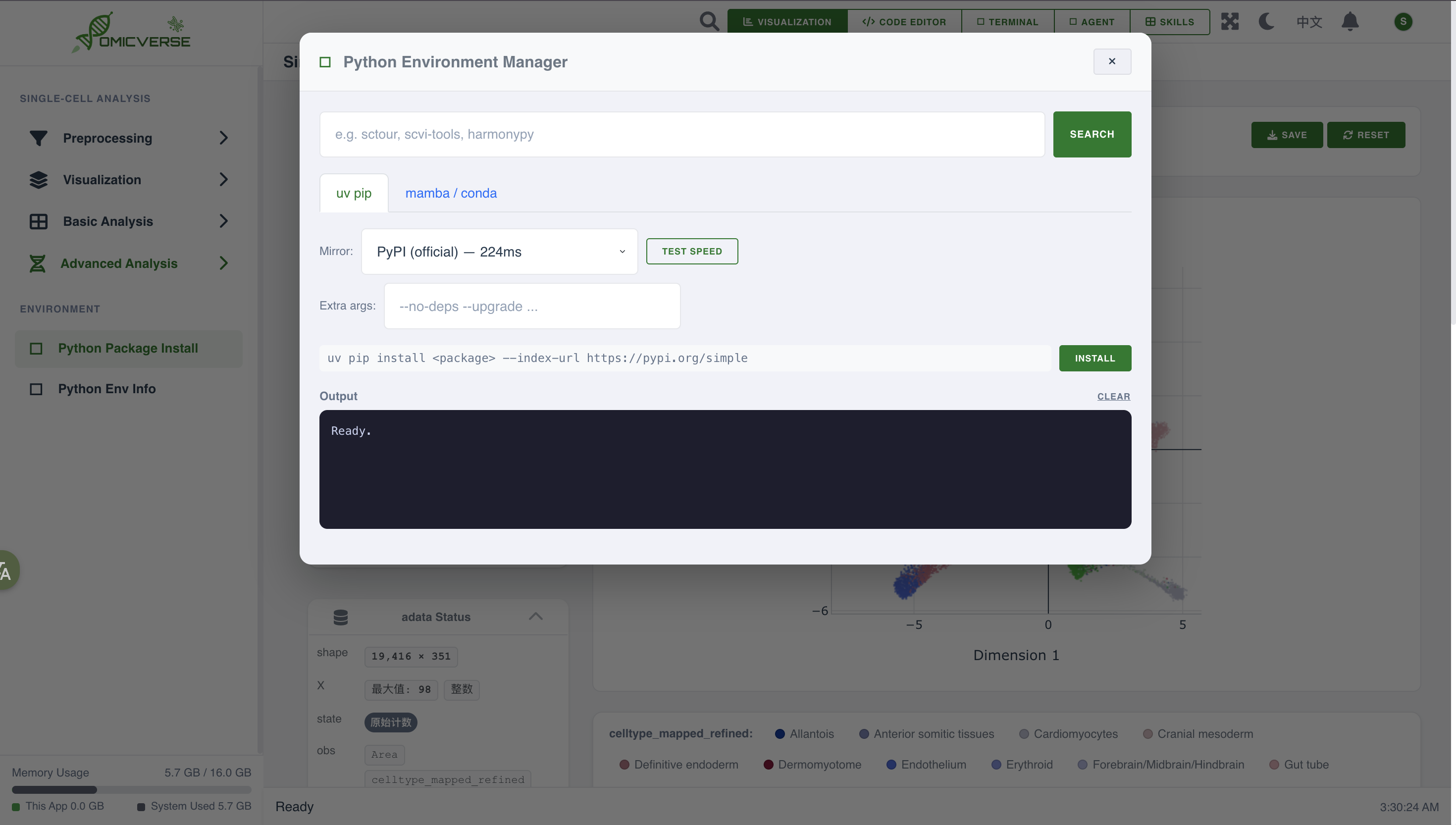
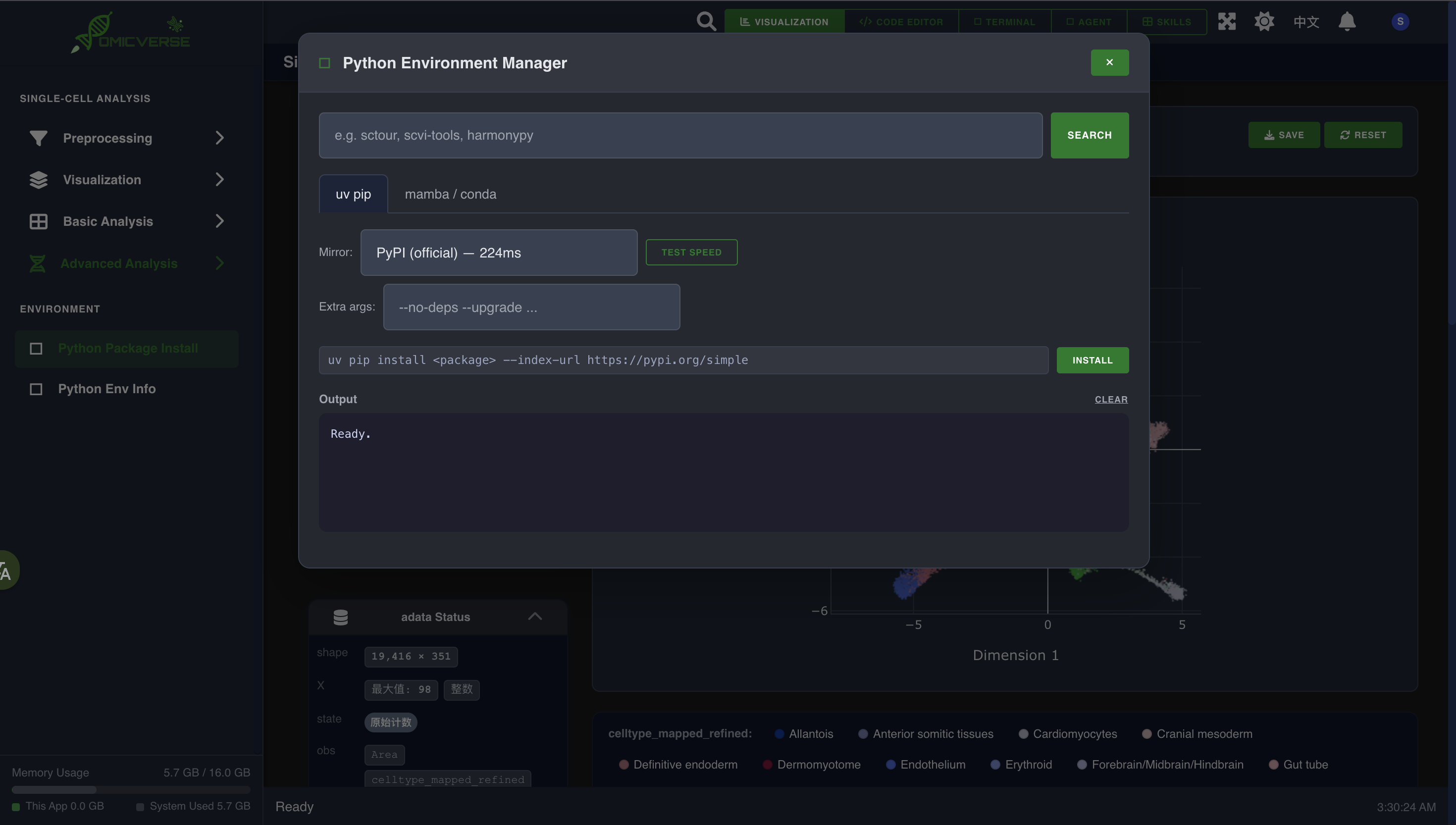
14.3 Package Manager
The Environment panel lets you search for and install Python packages without switching to the terminal:
15. Remote Server Deployment
To run OmicVerse Web on a remote server and access it from a local browser via an SSH tunnel:
On the Server
# Install
pip install omicverseweb

# Start in remote mode (bind to loopback only)
omicverse-web --remote --no-debug
On Your Local Machine — Create an SSH Tunnel
ssh -L 5050:127.0.0.1:5050 username@your-server.com -N
Then open http://localhost:5050 in your local browser.
Background (Persistent) Execution
nohup omicverse-web --remote --no-debug > omicverse_web.log 2>&1 &
References
- OmicVerse GitHub
- OmicVerse Web GitHub
- PyPI: omicverseweb
- Paper: OmicVerse: a framework for bridging and deepening insights across bulk and single-cell sequencing, Nature Communications (2024), 15:5983